 Keet Support
Create a Group 📲
A group in Keet is a space for secure communication where you can chat, make calls, and share files.
You can create and join as many groups as you want. They can be completely private, for a small company, family or friends, or they can grow into a large and vibrant community with thousands of members. 💫
Keet uses peer-to-peer (P2P) messaging, which means your data travels directly between users. No servers, no middlemen.
How do I start a chat in Keet?
Create a group and invite members. Here's how:
-
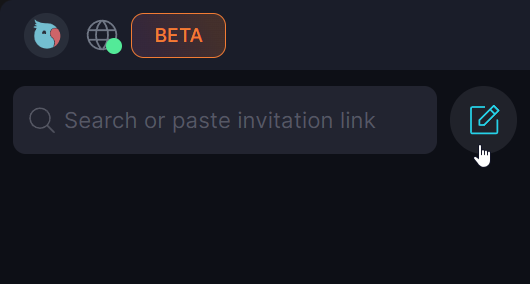
Click 'Start chat' [📝] button:
-
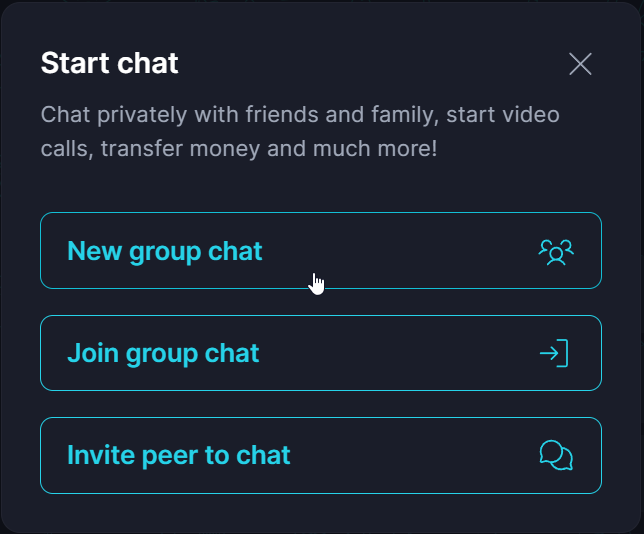
Select 'New group chat' :
-
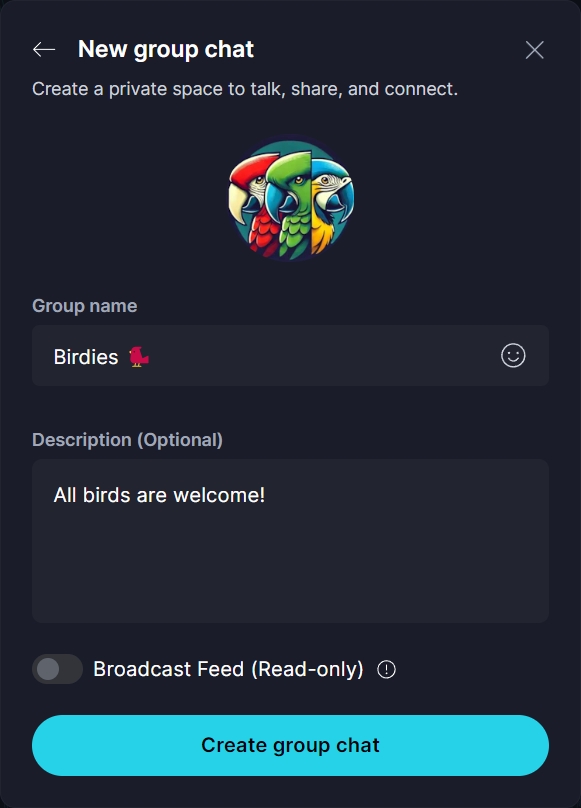
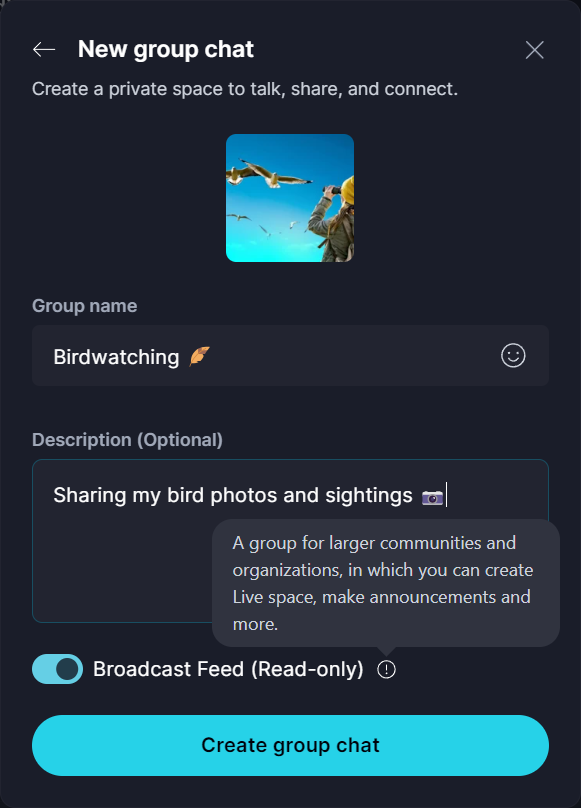
Enter a group name and optionally add a description and an avatar:
-
Click 'Create group chat'.
-
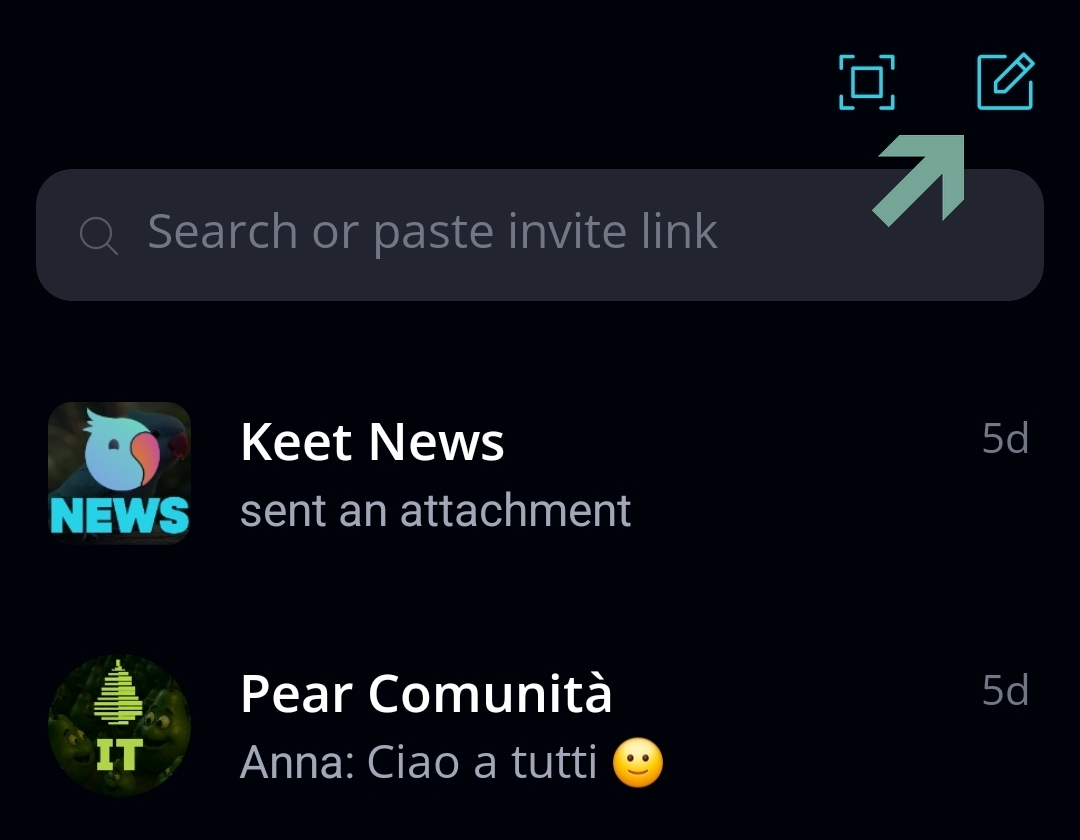
Tap 'Start chat' [📝] button:
-
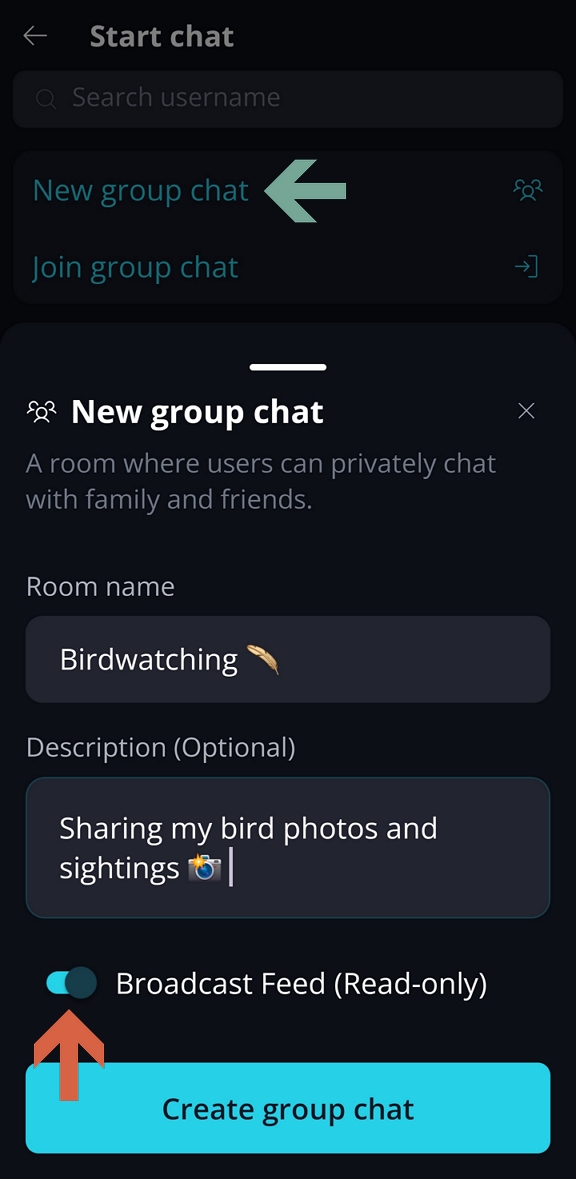
Select 'New group chat' :
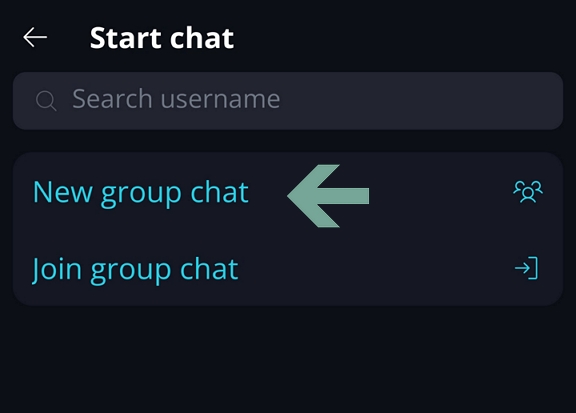
- Enter group chat name, description (optional):
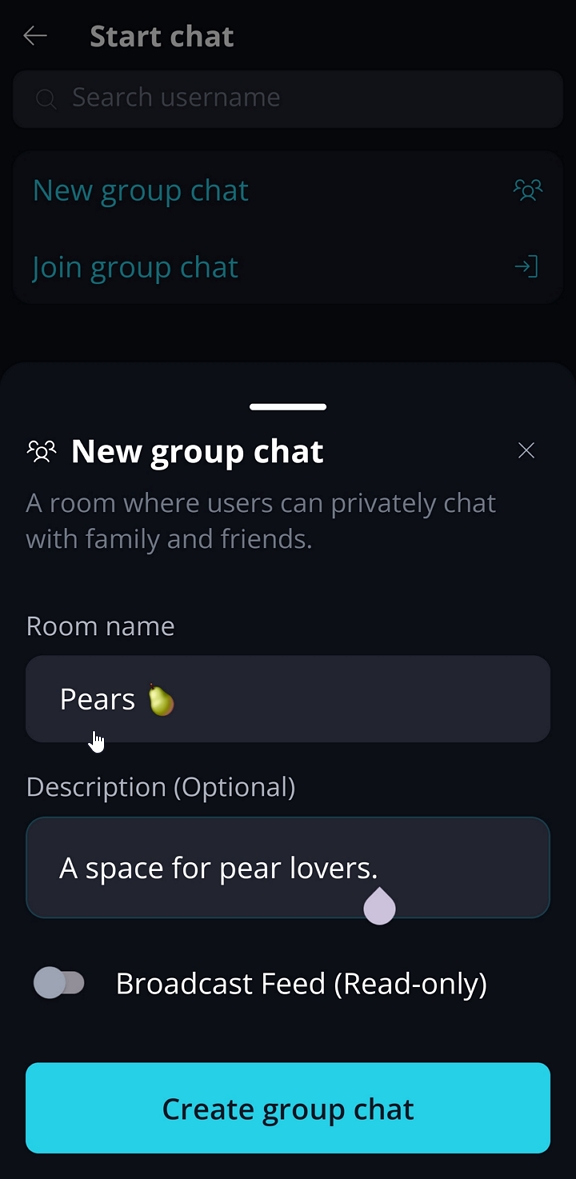
- Click 'Create group chat'. You can also set a group chat avatar now.
The group will appear on the chat list, and you will be the Administrator.
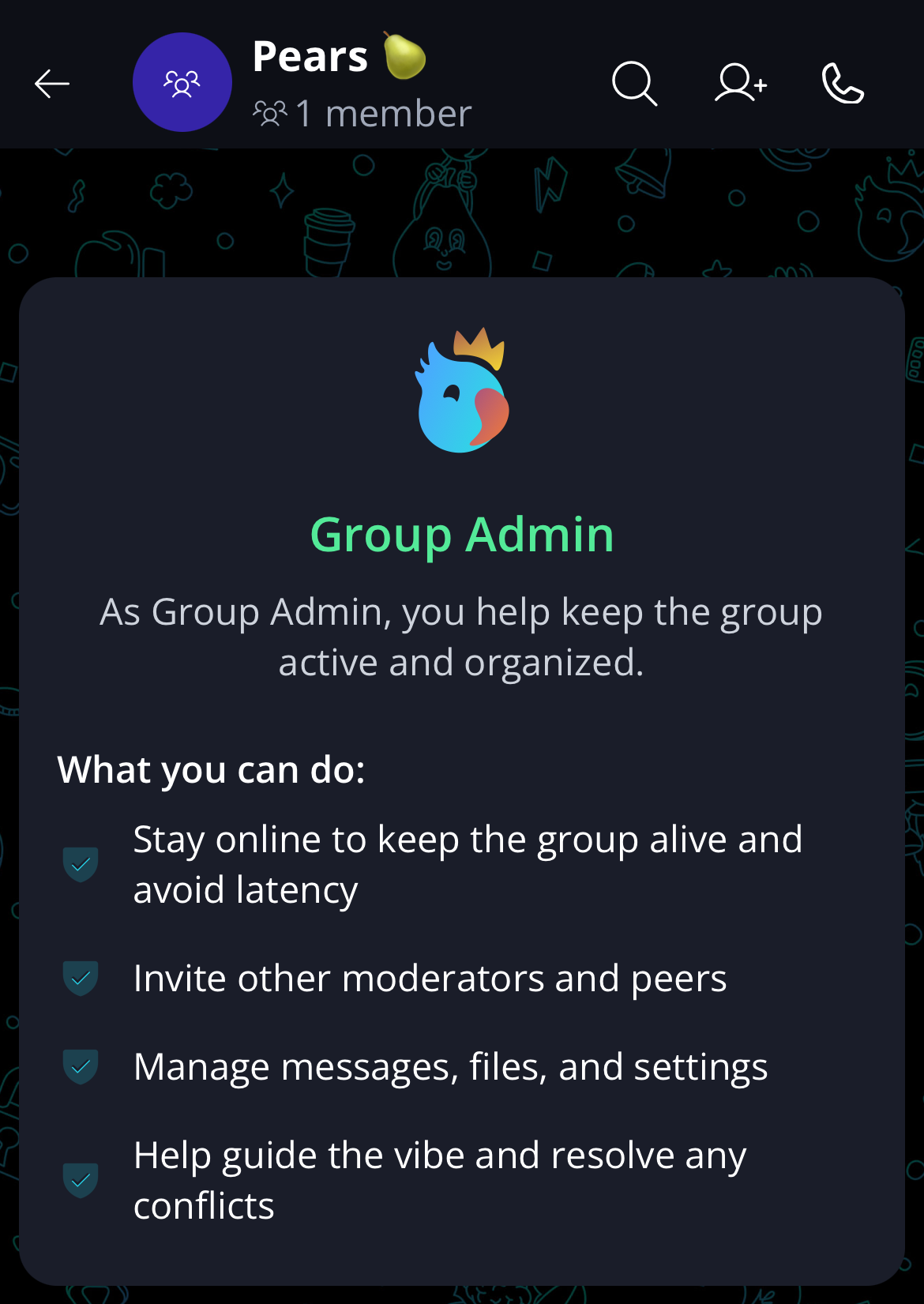
Now you can invite peers to join your group.
Group Settings
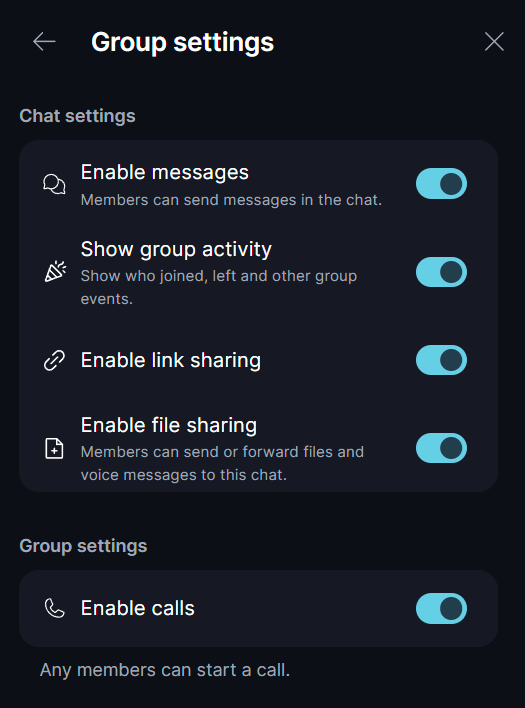
As a group administrator, you control the content and activity within your group. You can manage permissions for calls, messages, links, and file sharing — all settings can be changed at any time.
To access these options, open your group and go to Group Options / Group Settings.
Here you can:
- Enable messages Toggle the ability for Peers to send text messages and files. Admins and Moderators can still post.
- Show group activity Toggle system messages in the chat, such as when users join or leave the group, or when the group name changes.
- Enable link sharing Disable this to prevent members from sending or forwarding messages that contain links for all group members.
- Enable file sharing Disable this to restrict sending and forwarding of files, media, and voice messages for all group members.
- Enable calls Toggle the ability to make calls. Disable this to turn off calling for all group members.

How to create a broadcast feed and invite subscribers?
You can create a read-only group chat (channel) where only you and selected moderators can post, and then invite as many members as you like.
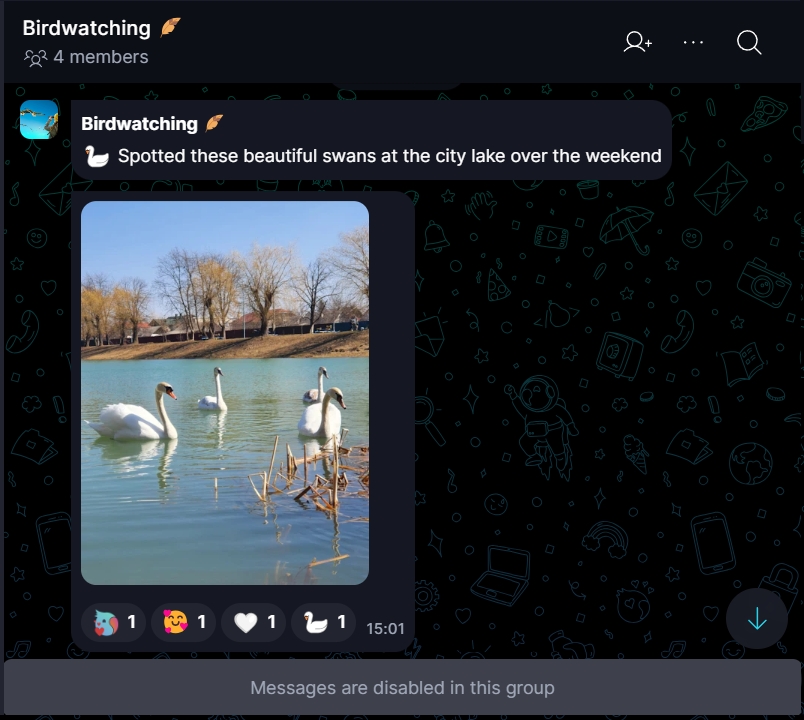
Learn more about member roles.
When setting up the group, toggle 'Broadcast Feed' to make it a read-only channel:
How big a public group could be?
There’s no limit to the number of peers a group can have. For example, our public Keet Welcome group has over 20,000 members, and the Keet News broadcast feed has more than 52,000 peers.
🎉 Jump into Keet today! Start chat, invite friends, and keep the conversation flowing.