 Keet Support
Group Moderation ⚖️
Keet offers multiple moderation tools for your groups and broadcast feeds.
Being a Moderator or Administrator, you can decide whether to enable calls, text messages, and activity notifications within your group. You can pin messages and media, assign roles to group members, remove messages and media, and mute those who share inappropriate content or permanently remove them from the group.
As a group Moderator or Administrator, you have access to the following settings:
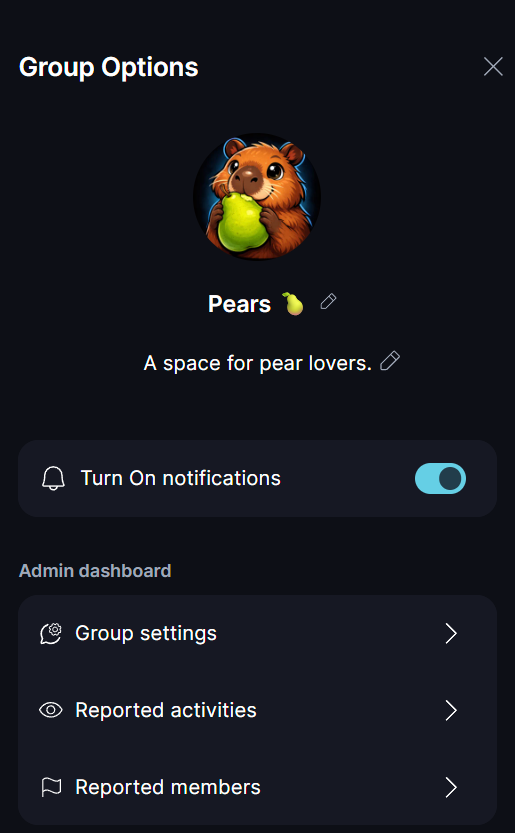
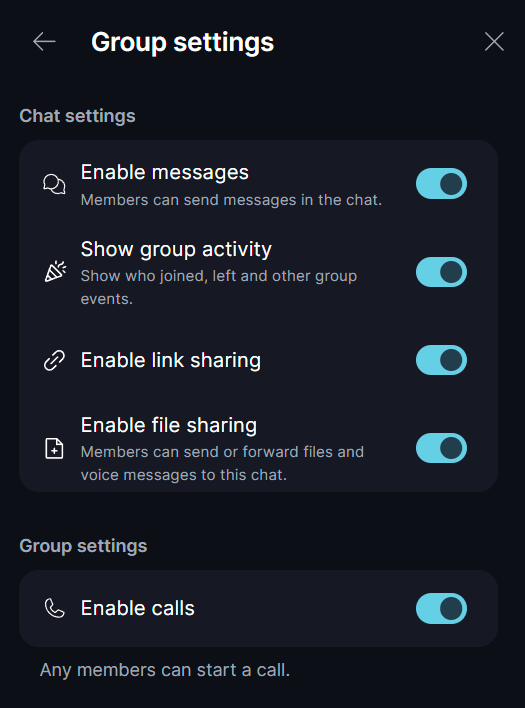
Group settings:
- Enable messages Toggle the ability for Peers to send text messages and files. Admins and Moderators can still post.
- Show group activity Toggle system messages in the chat, such as when users join or leave the group, or when the group name changes.
- Enable link sharing Disable this to prevent members from sending or forwarding messages that contain links for all group members.
- Enable file sharing Disable this to restrict sending and forwarding of files, media, and voice messages for all group members.
- Enable calls Toggle the ability to make calls. Disable this to turn off calling for all group members.
Reported activities View the reported messages or media and the list of users that other peers in the group reported.
Reported members View the list of members who were reported by other peers for spamming or sharing inappropriate content.
Group member list View the list of group members, change their roles and mute or remove from the group.
Handling reported content
When a message is reported, admins and moderators can review the reported content and take appropriate action, such as deleting the message for all members, muting the sender, removing them from the group, or ignoring the report.
To review reports, go to Group / 'Group Options' / 'Reported activities':
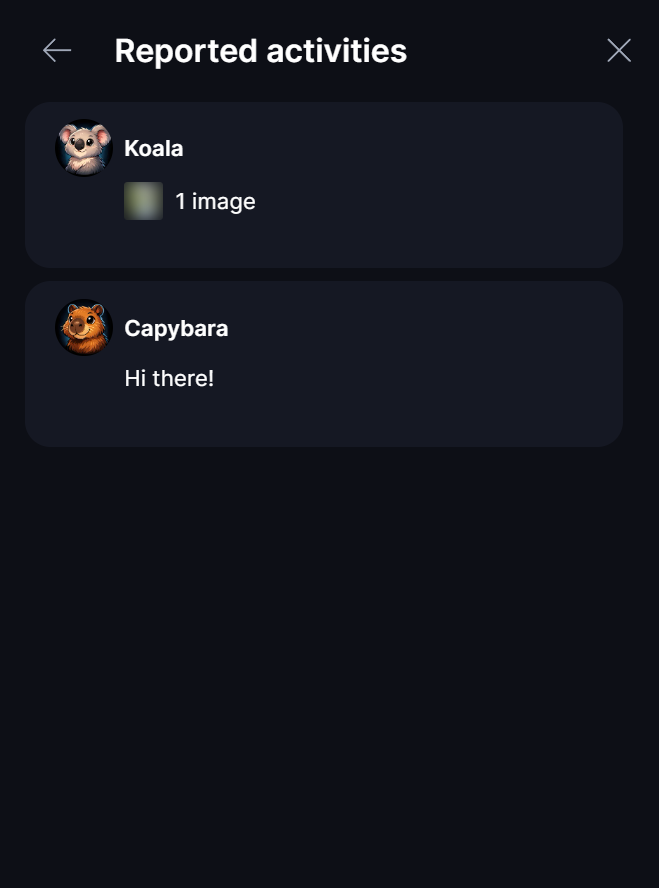
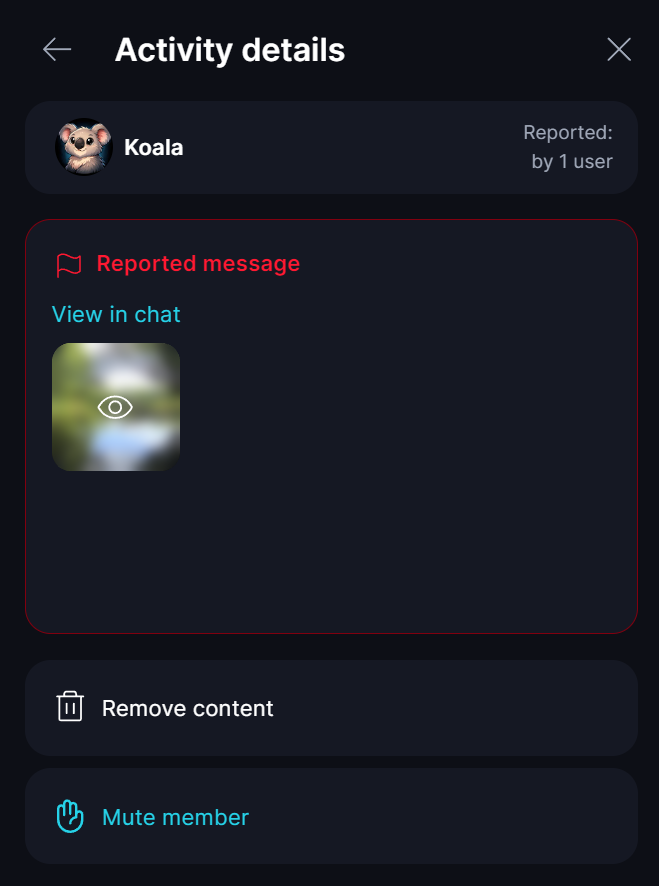
In this section, you can view the list of reported messages, see how many users have reported each item, jump directly to the message in the chat, and choose the appropriate action.
Remove content
If you decide to remove the inappropriate message or media, it will be deleted for all group members.
Please note that the message removal is permanent and cannot be undone 🗑️
Handling reported users
If you decide to restrict a peer’s ability to post in the group, you can temporarily mute them or remove them from the group entirely.
The list of reported users is available under 'Group options' / 'Reported Members'. Selecting a member from the list takes you to the 'Manage member' page, where you can take the appropriate action.

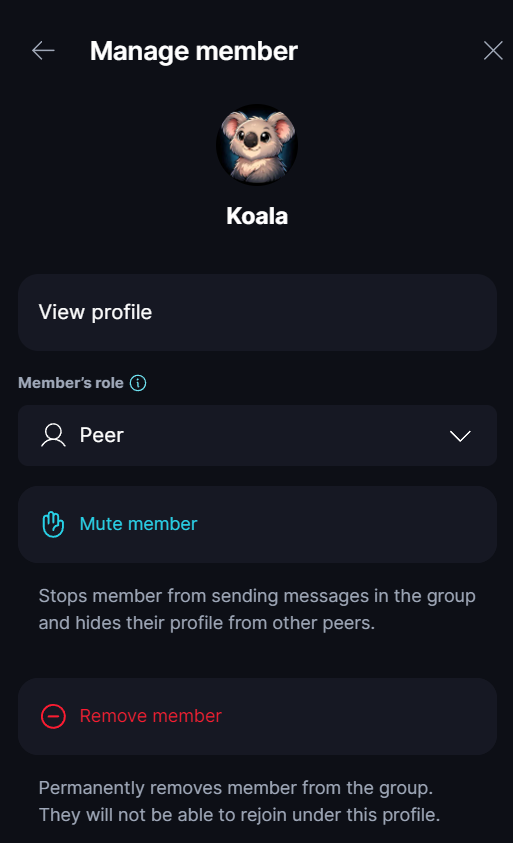
Mute member
You can temporarily mute a peer in the group by selecting 'Mute member'.
This reversible action prevents the member from sending messages in the group and hides their profile from other peers. You can unmute the member from the same menu at any time.

Remove member
Admins and Moderators can permanently remove a peer from the group by selecting 'Remove member'.
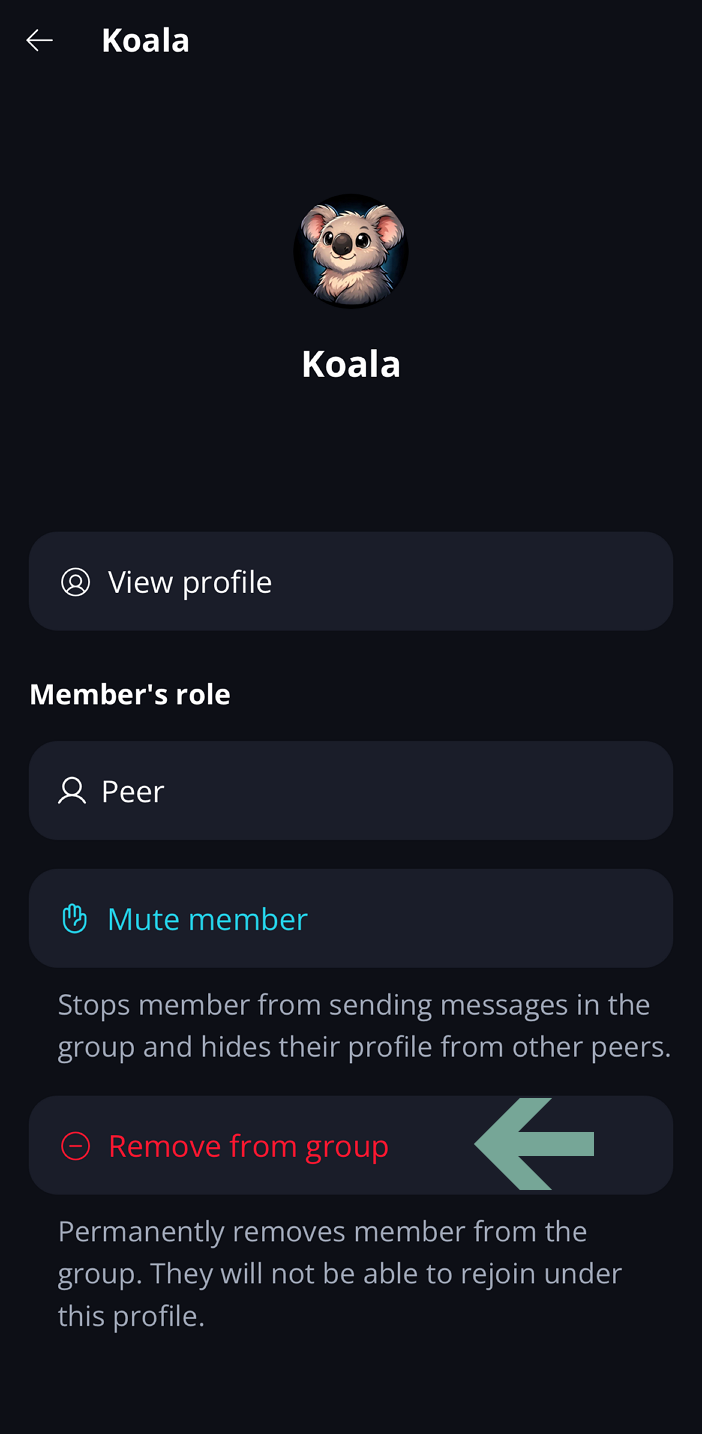
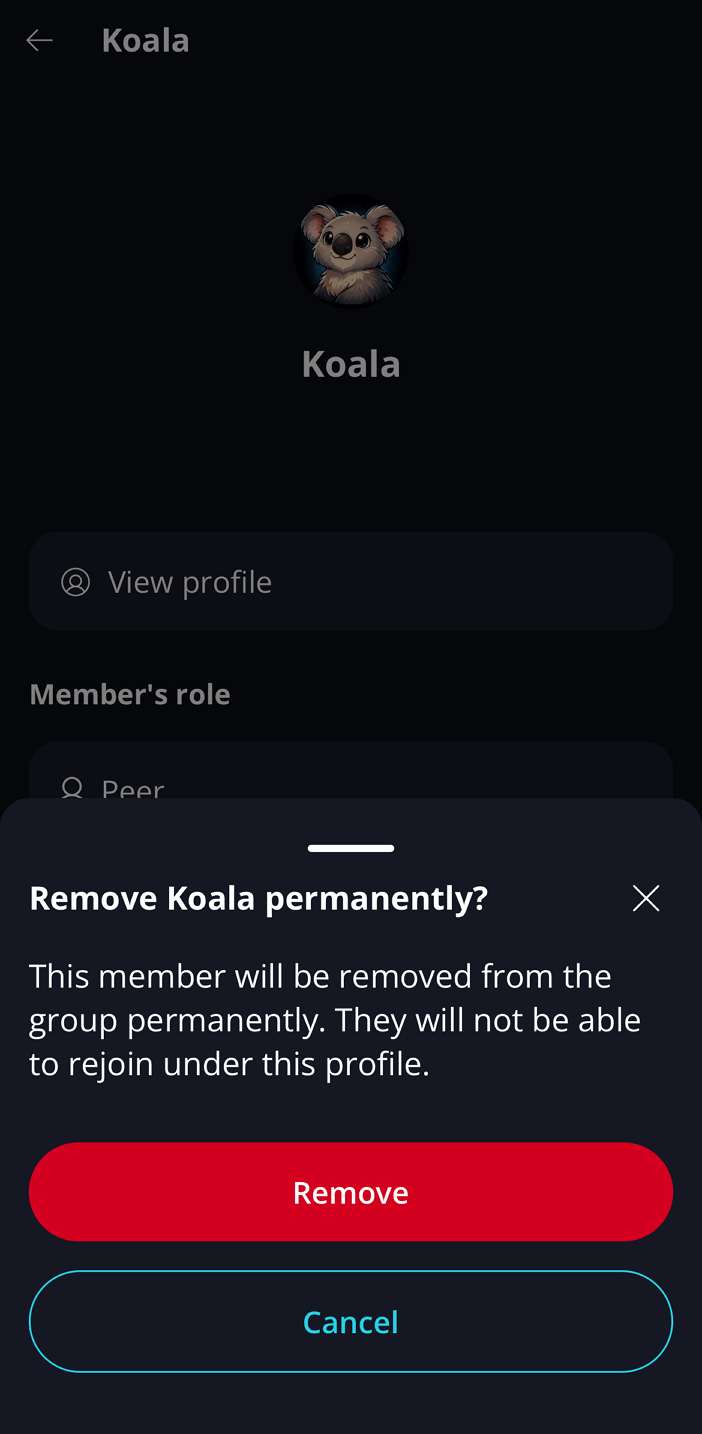
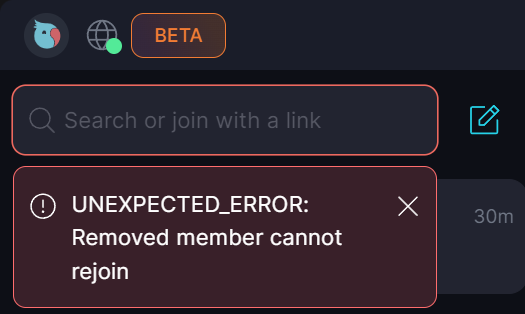
Removing a member from a group is irreversible. The user will no longer be able to rejoin this group, even if they have the invite link or group QR. 🚫