 Keet Support
Group Member Roles 🥷
In Keet, each group chat is an independent space with peers, admins, and moderators who define the rules.
What are the group member roles in Keet?
In Keet, each group chat is an independent space with peers and admins and moderators who define the rules.
The group creator is automatically assigned the role of Administrator 👑
Admins and Moderators can restrict a user's access to their group, but this doesn't affect the other users' ability to start their own chats or join others.
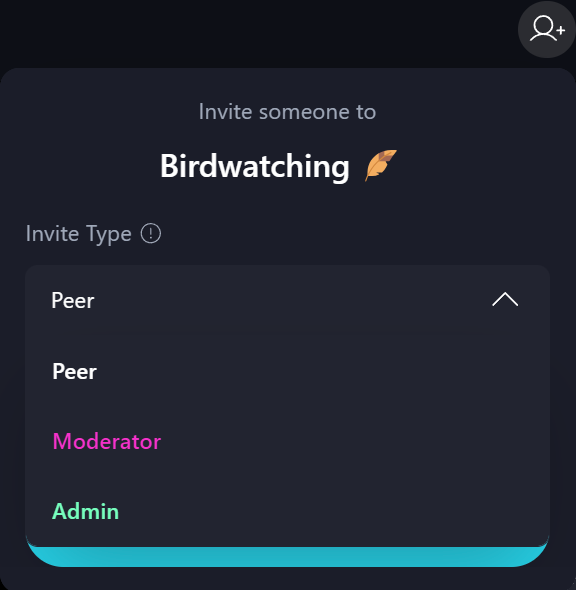
Peer
- Can send messages and media, start group calls (if enabled).
- Can delete their own messages.
- Can invite others to join this group as Peers.
- Can report inappropriate content.
Moderator
- Can send messages and media, start group calls (if enabled).
- Can change the group name, description and avatar.
- Can pin text and media messages for all members.
- Can delete any messages in the group.
- Can mute/unmute1 other peers.
- Can enable/disable calls in the group.
- Can enable/disable room activity events 2
- Can promote and invite others to join the group as a Moderator.
- Can report inappropriate content.
- Can see reported content and take appropriate actions.
- Can see reported users and take appropriate actions.
- Can remove users from the group.
Administrator
- Can send messages and media, start group calls (if enabled).
- Can change the group name, description and avatar.
- Can pin text and media messages for all members.
- Can delete any messages in the group.
- Can mute/unmute1 other peers.
- Can enable/disable calls in the group.
- Can enable/disable room activity events 2
- Can promote members to Moderators.
- Can invite others to join as group Administrators.
- Can report inappropriate content.
- Can see reported content and take appropriate actions.
- Can see reported users and take appropriate actions.
- Can remove users from the group.
- Have a responsibility to be frequently online to improve the group's performance.
Learn more about Administrator responsibilities.
How to change the roles of group members?
You get assigned a particular role upon joining via the invitation link, but it can be changed later by the administrator.
To change role, as an admin or moderator, go to a 'Group Options' / 'Members permissions' to see the list of members:
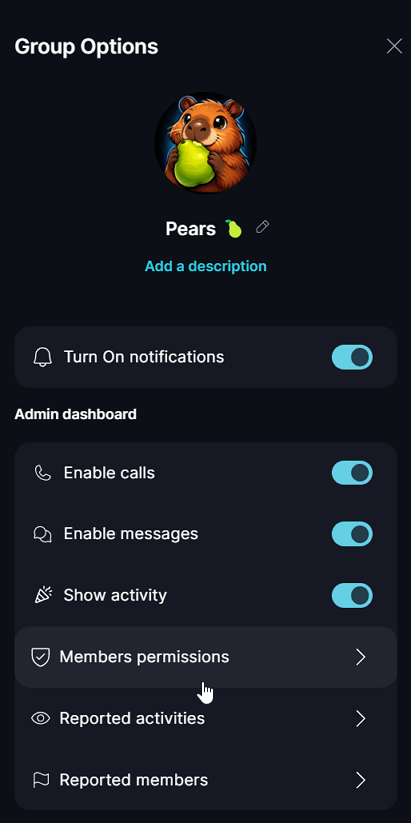
Upgrade Peer to Moderator
- Select a Peer member from the list
- Choose 'Moderator'; review and if agreeable, acknowledge the moderator capabilities; click 'Make group moderator'
Downgrade Moderator to Peer
- Select a Moderator member from the list
- Choose 'Peer', and click 'Downgrade'. It will remove all the moderator's capabilities from the member.
- Moderators can also downgrade themselves in the same way if they decide not to moderate the group anymore.
Downgrade Admin to Peer or Moderator
- Select an Admin member from the list
- Ensure that there is more than one Admin in a group
- Choose 'Peer', and click 'Downgrade'. It will remove all the moderator's capabilities from the member.
- Administrators can also downgrade themselves in the same way if they decide not to be an admin and not to moderate the group anymore.
Upgrade a member to an Admin
Unlike Peers and Moderators, the Administrator role can only be assigned through a dedicated group admin invite.
If a user is already a member of the group, they need to leave and rejoin using an admin invitation link.
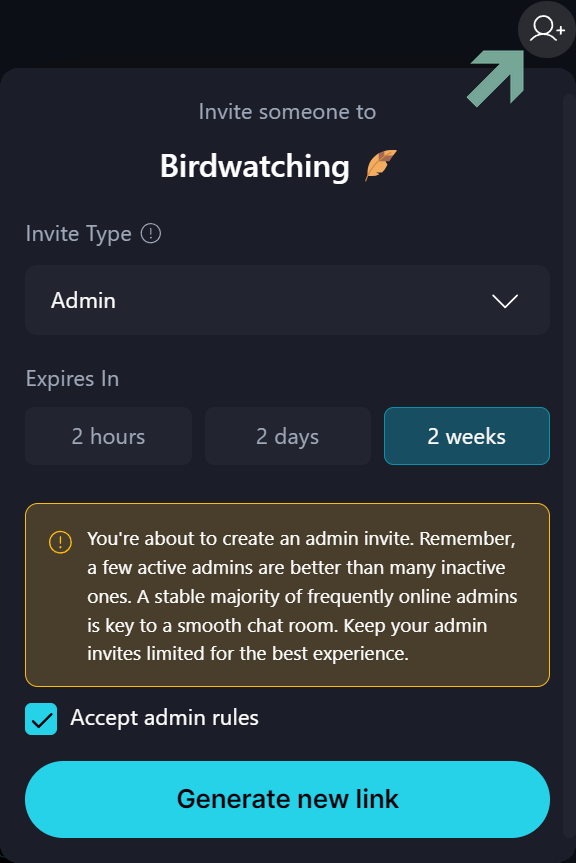
- As an Administrator, open the group where you want to add another Admin.
- Click the 'Create Invite Link' button in the top-right corner.
- Select 'Admin' as the invite type; review and if agreeable accept the Admin rules; then click 'Generate new link'.
- Share the invite link with the user or let them scan the generated QR code to join or be upgraded to Administartor.
Keep in mind that an Admin invite link is single-use and expires after the set duration