 Keet Support
Setup
To start using Keet, no email or phone number is required. To begin chatting, install the app and create a profile to connect with others.
How can I create a profile on Keet?
Creating a unique username is optional and will help other users to find you and send DM1 requests or group chat invitations.
Follow these steps to create your Keet profile:
Download & Open Keet
Download and install Keet using the installation guide.
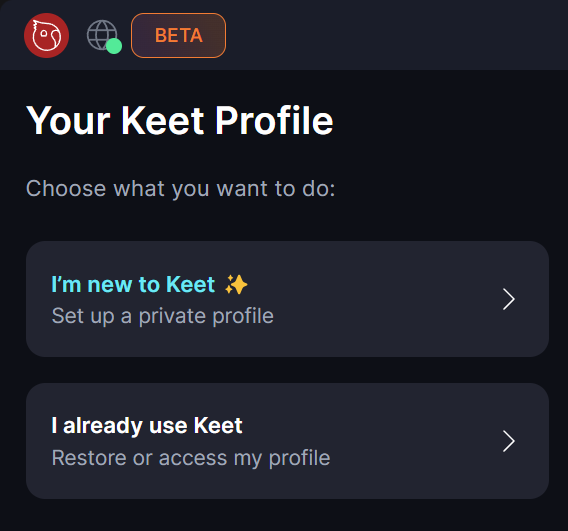
On launch, select “I’m new to Keet. Set up a private profile”.
Set up a recovery phrase
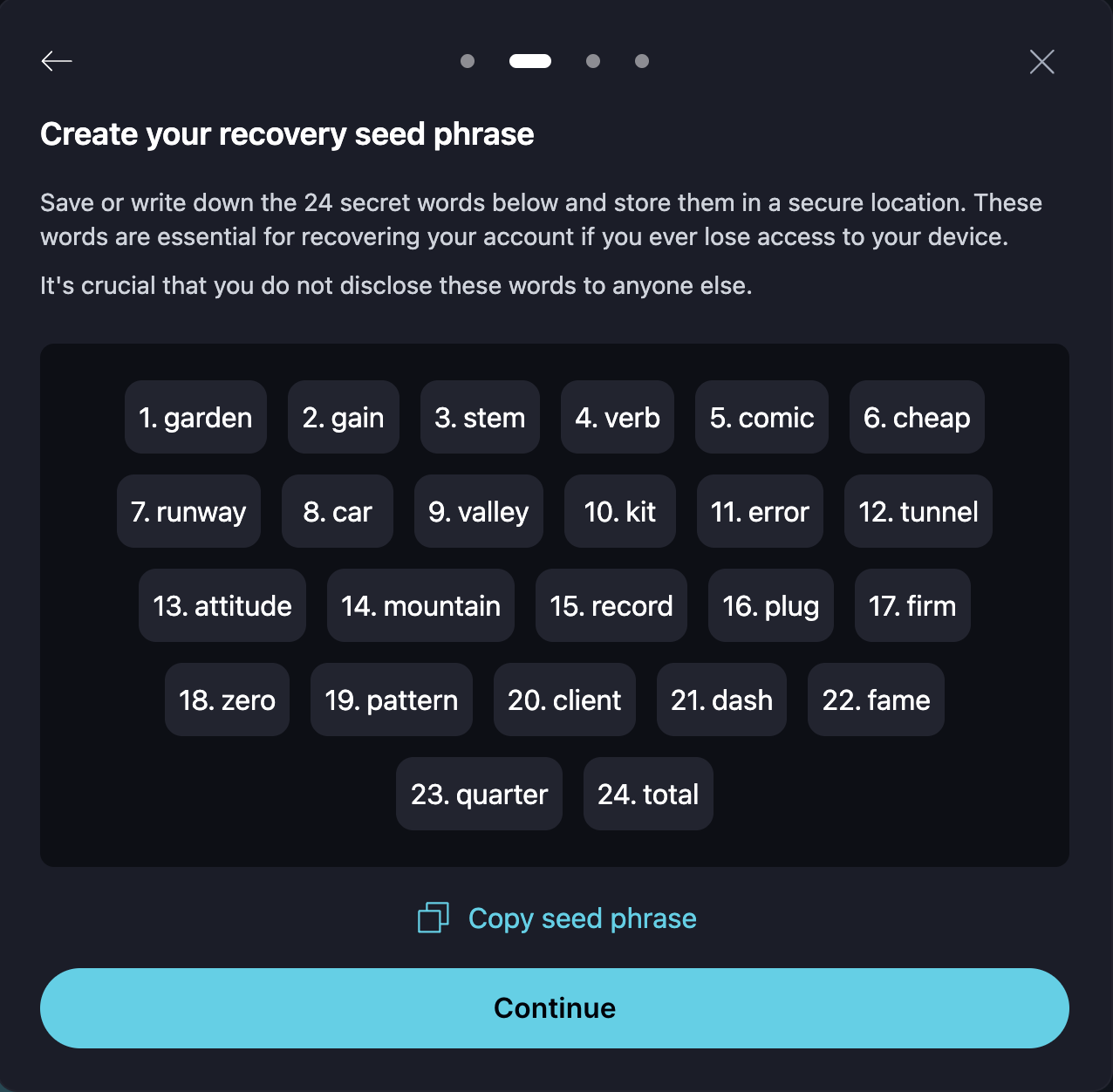
A recovery phrase is a 24-word code that works as a password. If you lose your device or reinstall the app, you can use it to restore your profile and messages.
Setting a pass phrase is a critical step, as it’s the only way to recover your account or move it to a new device. 🔏
Quick setup
Automatically generates a recovery phrase and securely stores it on your device.
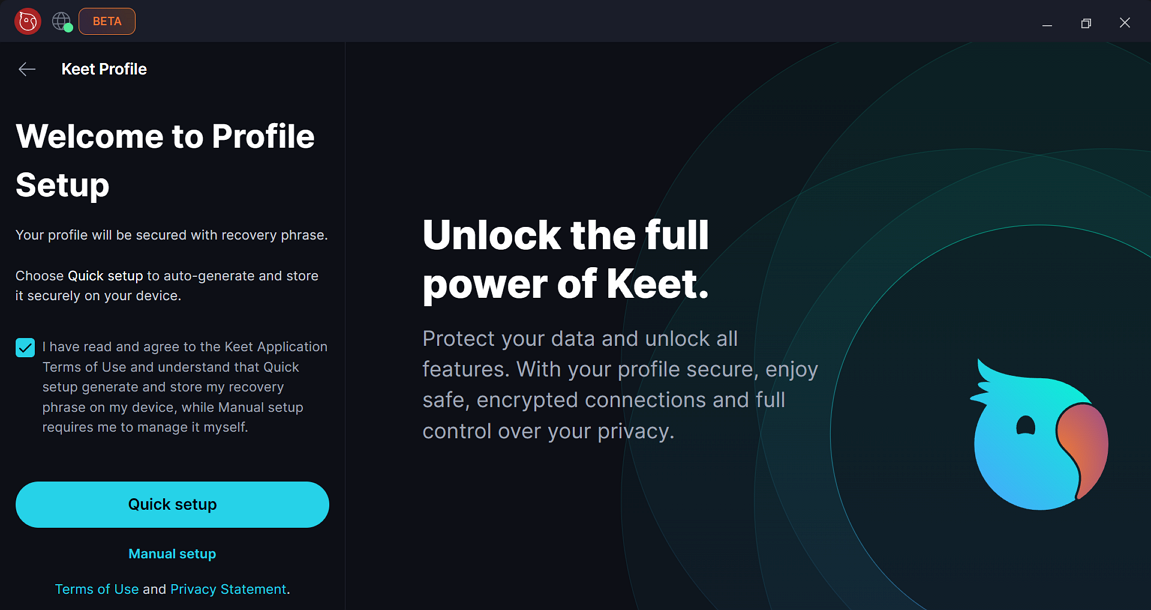
Manual setup
Allows you to write down and manage the recovery phrase yourself.
In case of Manual setup, you should copy or write down the recovery phrase immediately and store it securely. 🔑
Learn more about recovery phrases and account recovery by the link.
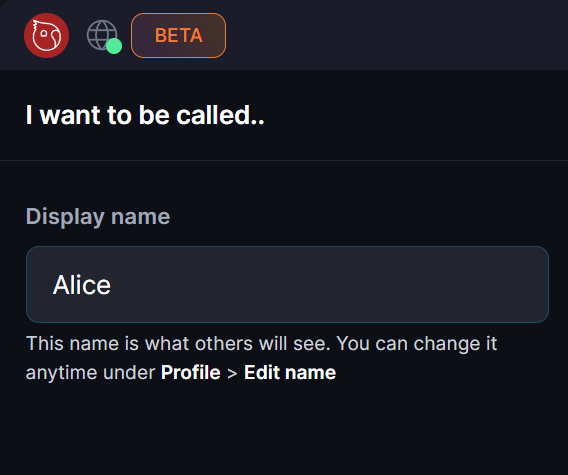
Choose a display name
Your display name is what other users will see in groups and private chats.
A display name can be changed at any time.
Choose a username (optional, but recommended)
Your username is how others can find you on Keet. You can choose your username now, or skip and add one later.
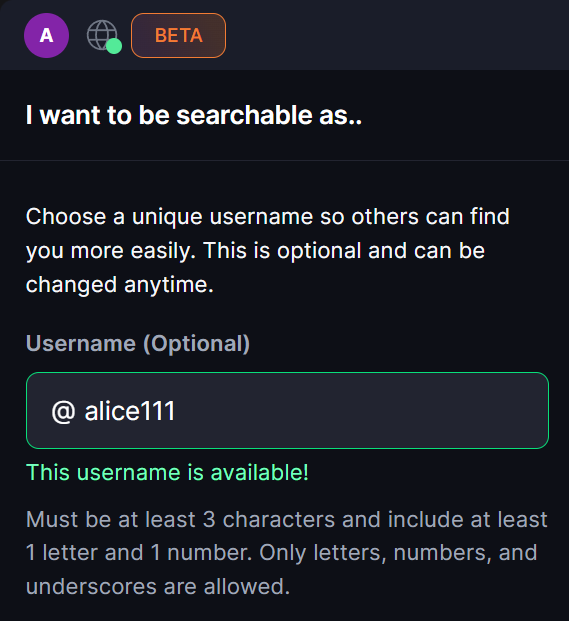
If you prefer to remain undiscoverable by a username, skip this step.
Just remember: other users won’t be able to find you unless you share your profile QR code with them 🔎
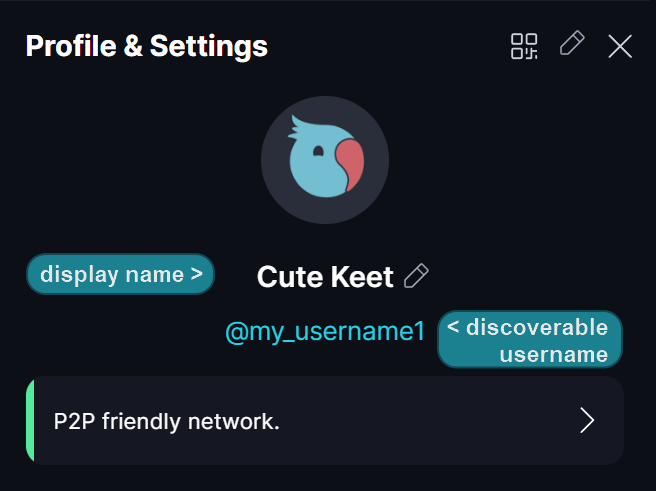
You can learn more about usernames in the Keet Username section.
Complete setting up
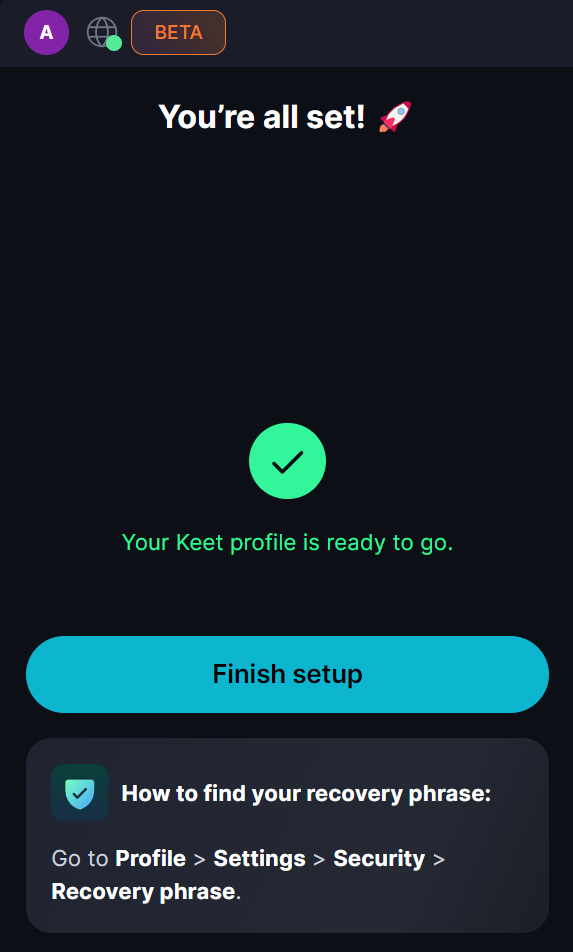
Once your profile is created, click 'Finish setup' to move forward.
Feel free to add a profile picture to express your personality
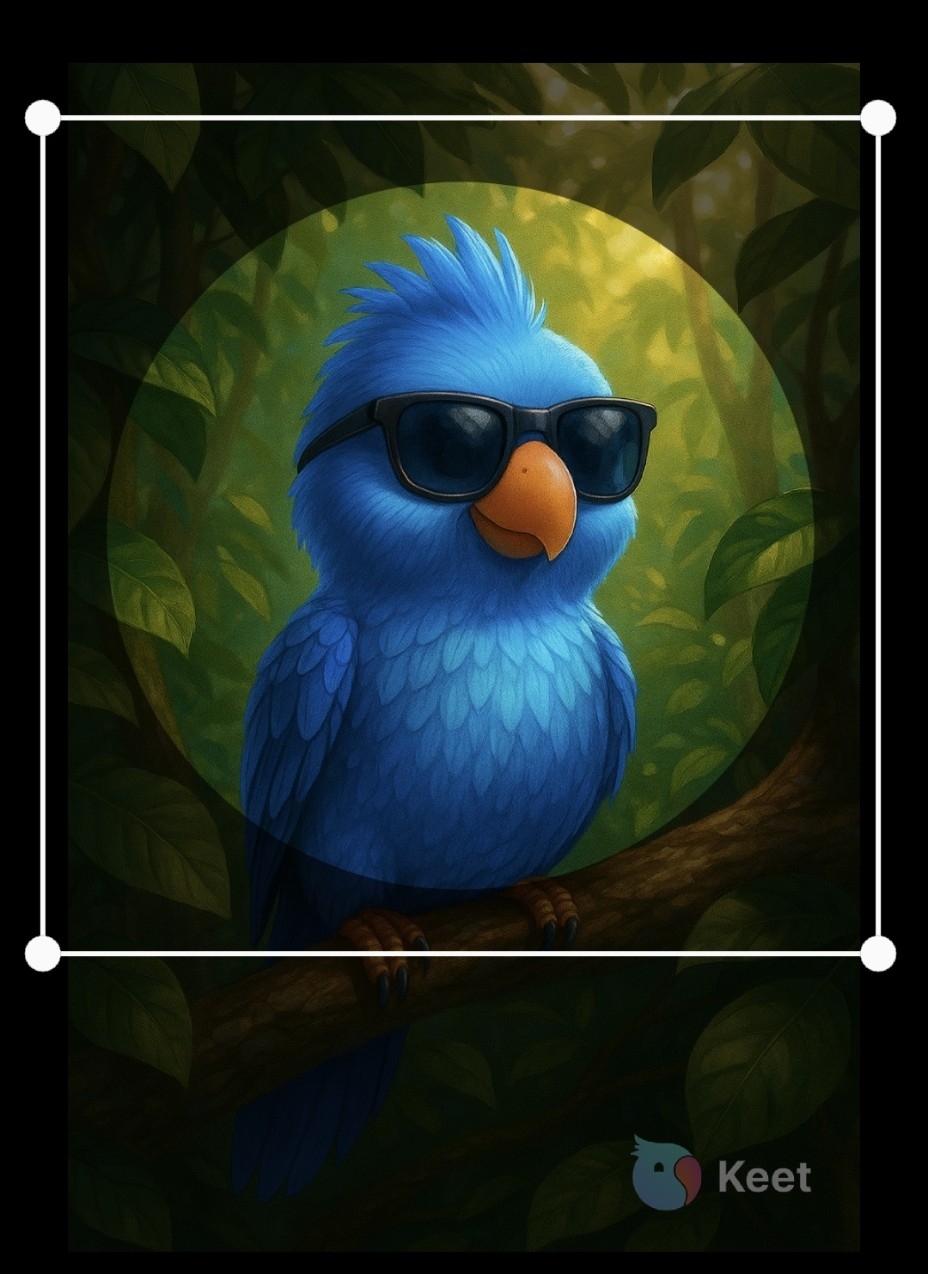
That’s it! 🖍️ You’re ready to go!
You can now join groups, discover communities or chat peer-to-peer and explore Keet!
Footnotes
-
Direct Message ↩