 Keet Support
Link Devices
Yes, you can link any device that supports Keet to your profile. Here's how:
Can I use Keet on multiple devices?
Current device
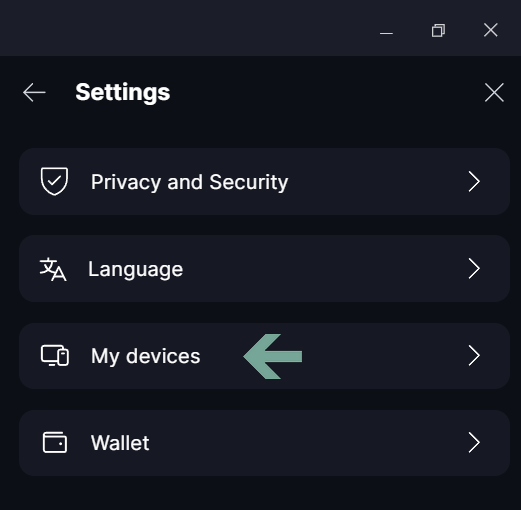
Open Keet and go to the 'Profile' / 'Settings' / 'My devices'.
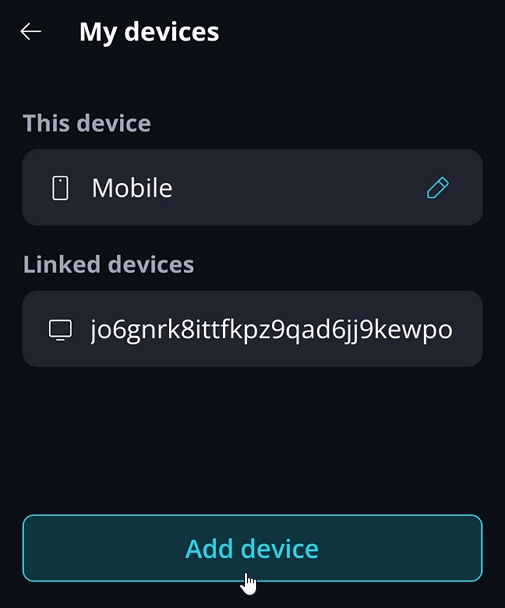
At the top, you’ll see your current device, with any linked devices listed below.
Click ‘Add a device’ to generate a pairing link or a QR code.
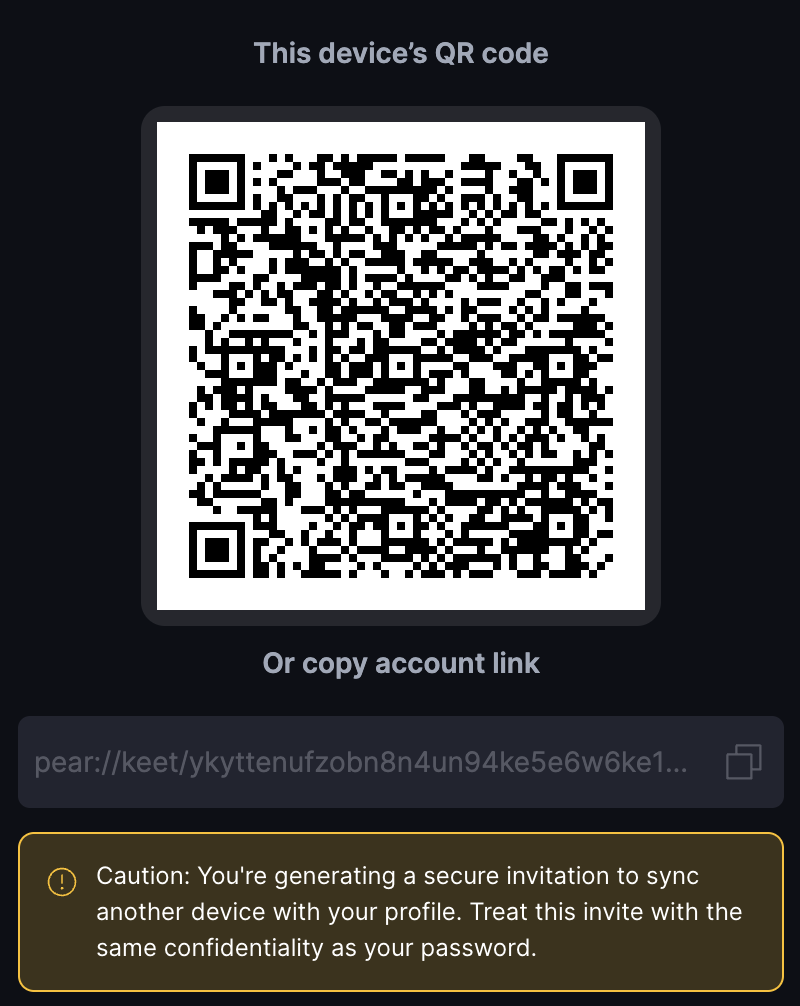
On the next screen, you can either:
- Copy the profile link and share it with the other device, or
- Use the QR code to scan later.
Continue the setup on your new device.
New device
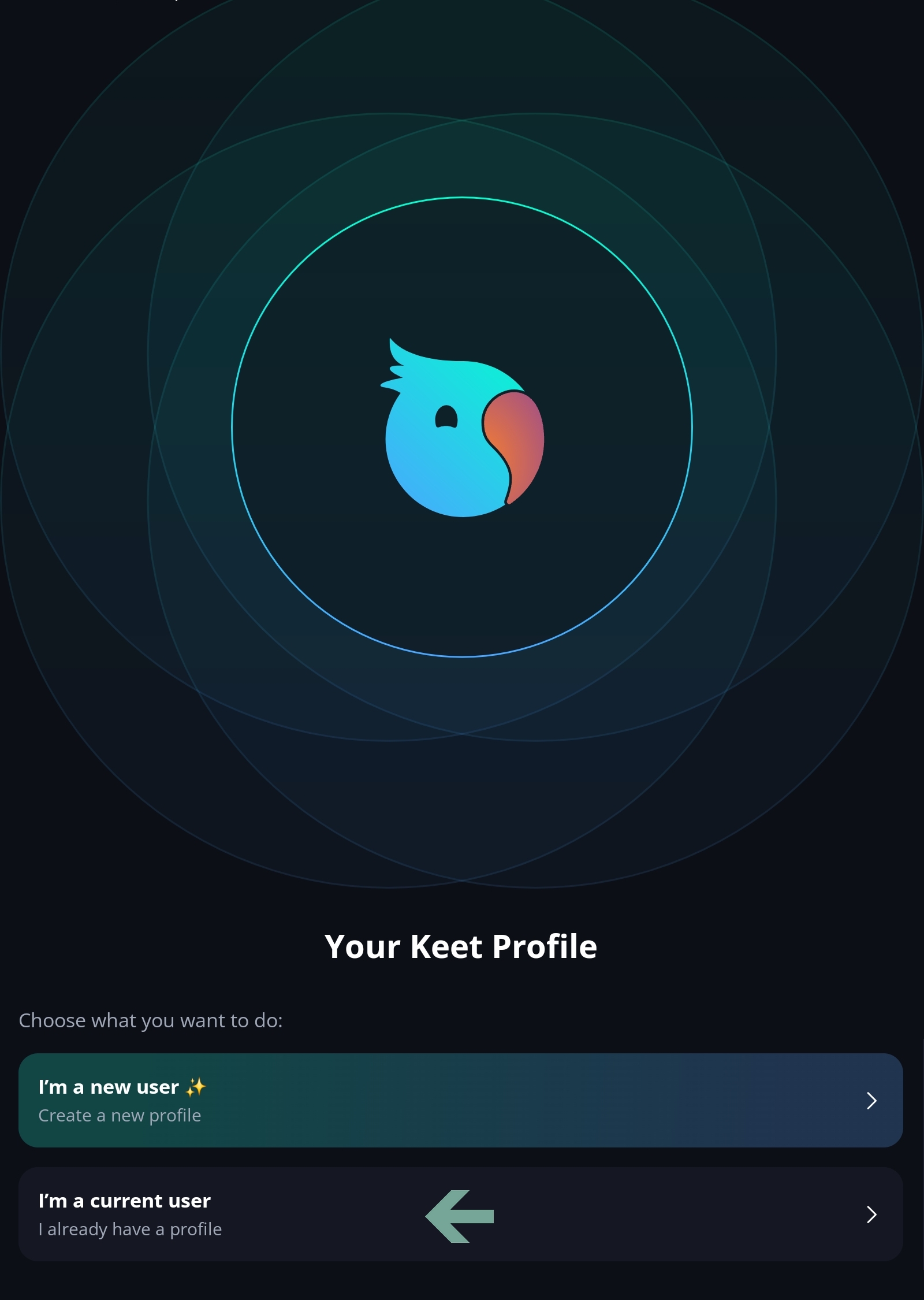
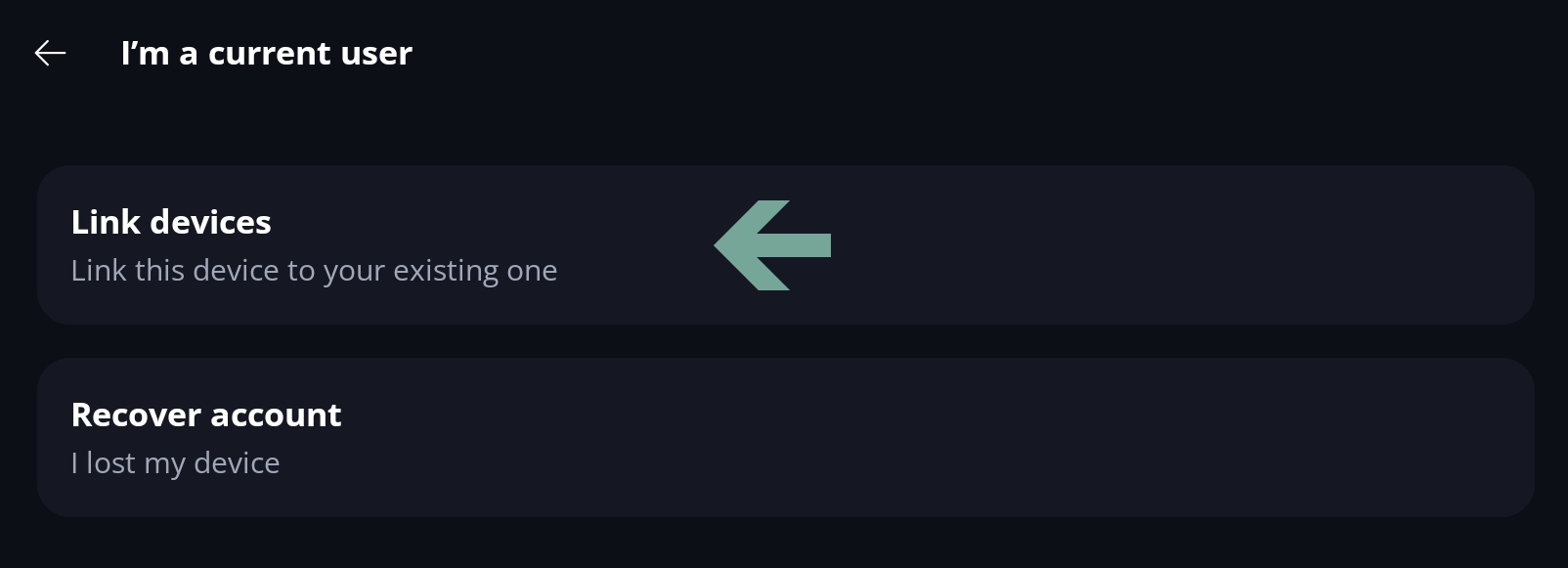
Open Keet on the new device and select 'I’m a current user'.
On the next screen, choose 'Link device'.
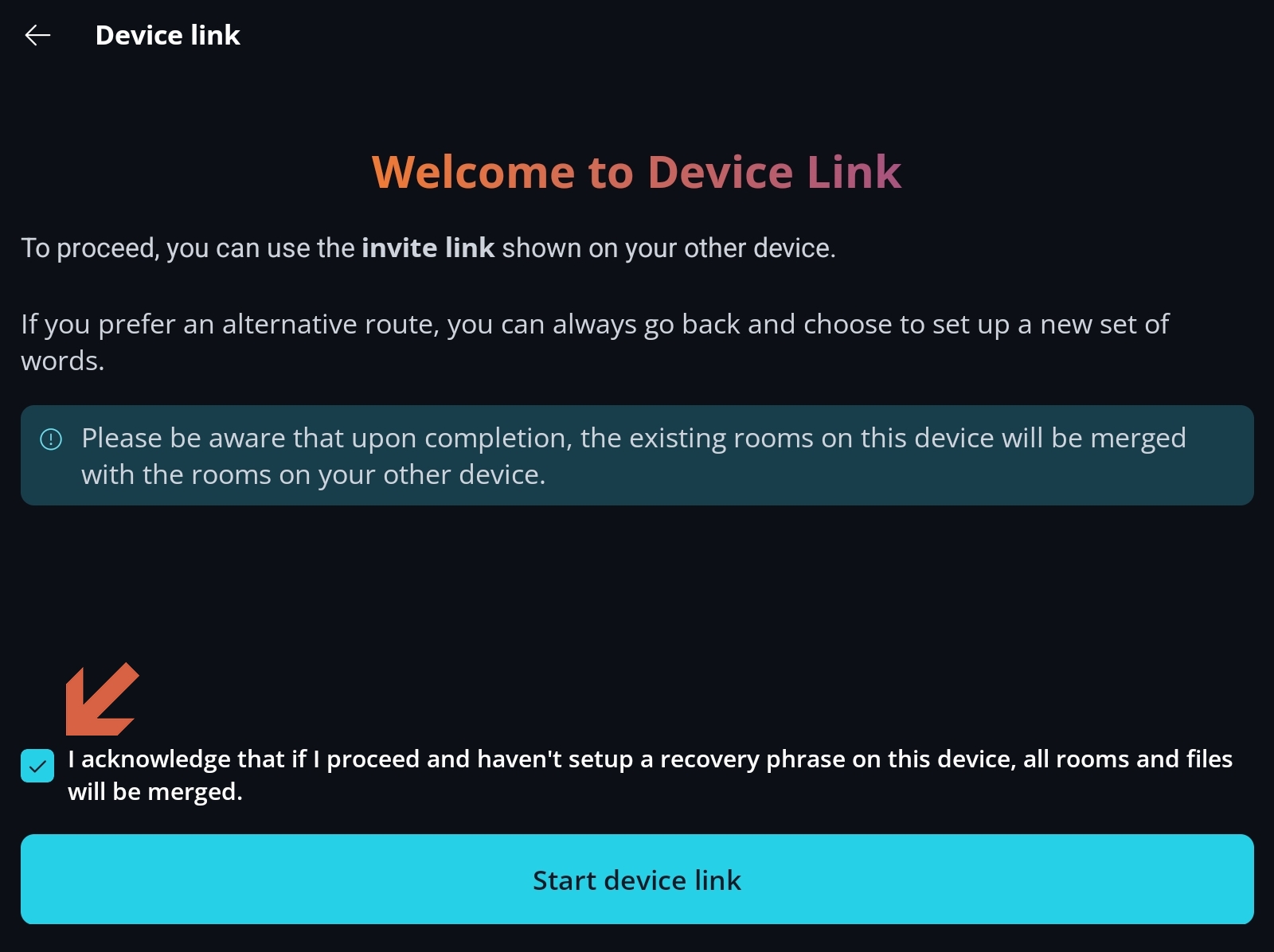
Read the information and, if acceptable, tick the 'I acknowledge' box and click 'Start device link'.
Select either 'Scan QR code' or 'Use account link'.
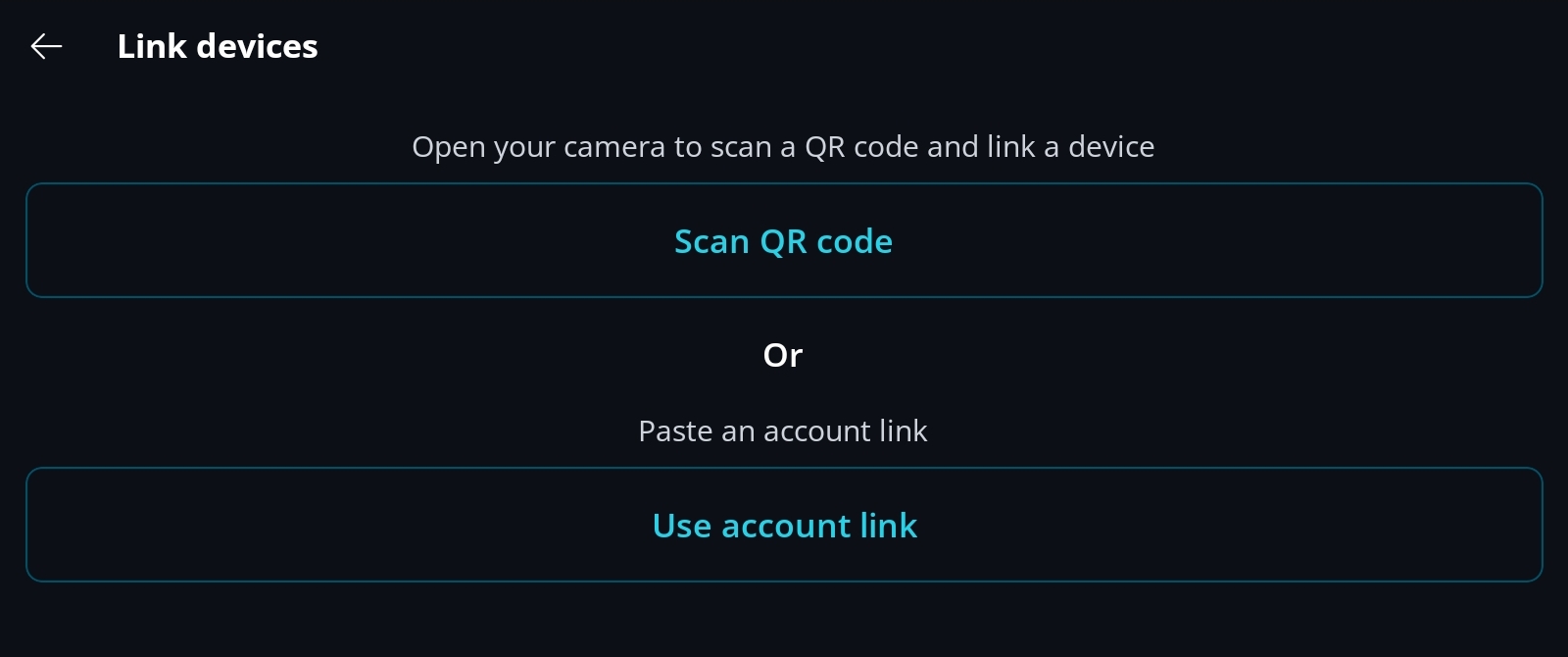
- If scanning: scan the QR code generated on your existing device.
- If using the link: paste the link copied from your existing device.
Confirm Setup
A confirmation message will be sent to the existing device.
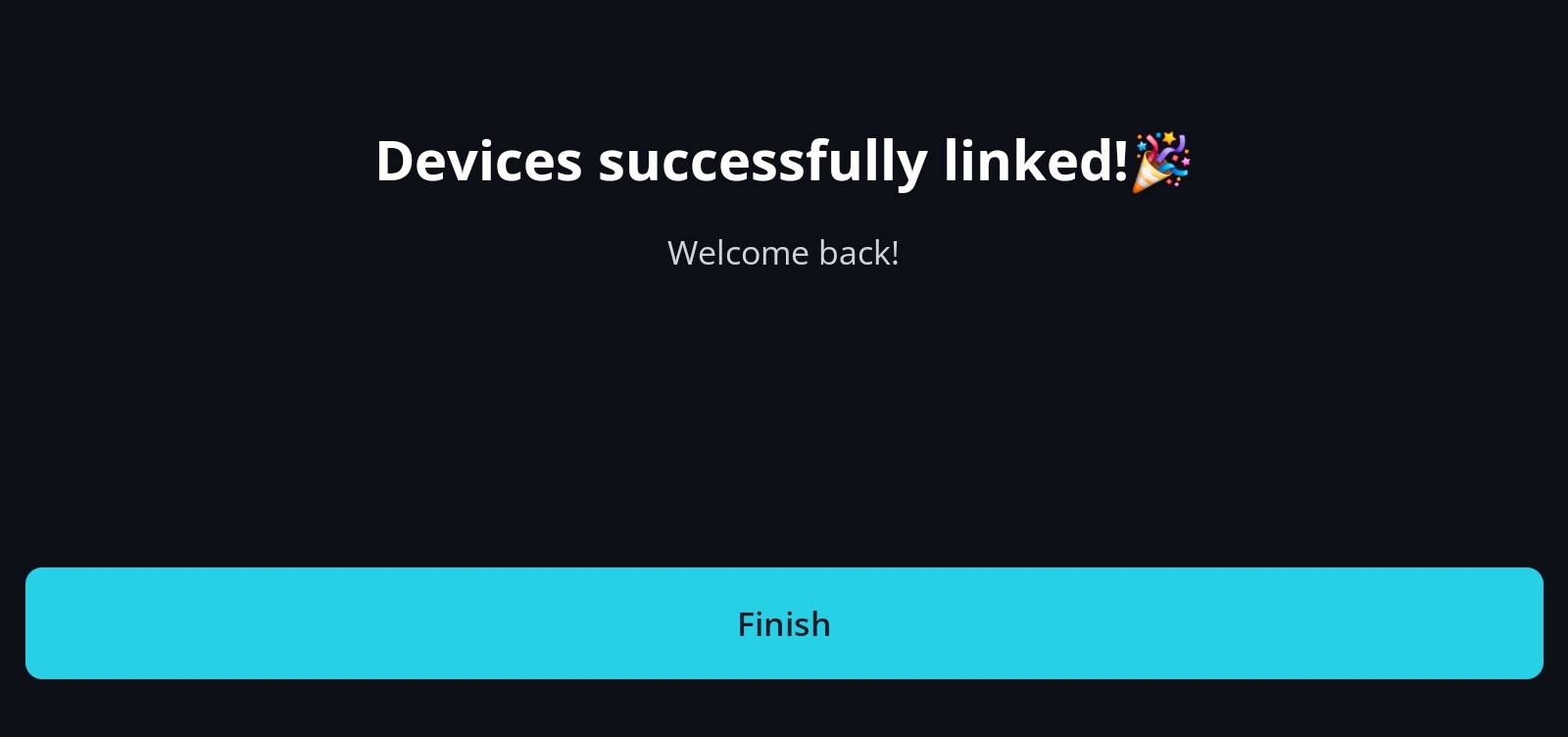
Click ‘Confirm Sync Devices’ to complete the process.
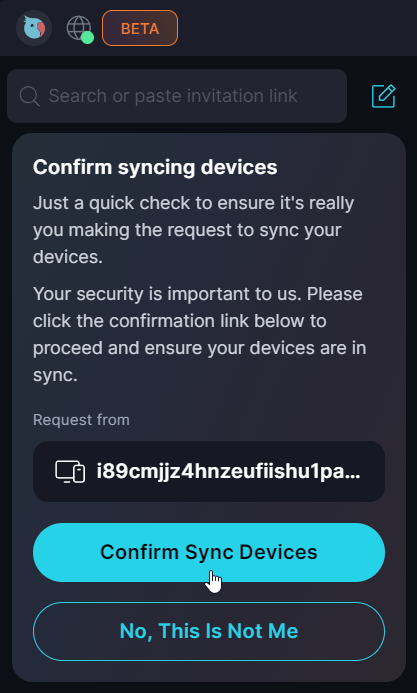
Your chat rooms and settings will now sync across devices.
Rename devices
For convenience, you can rename your devices.
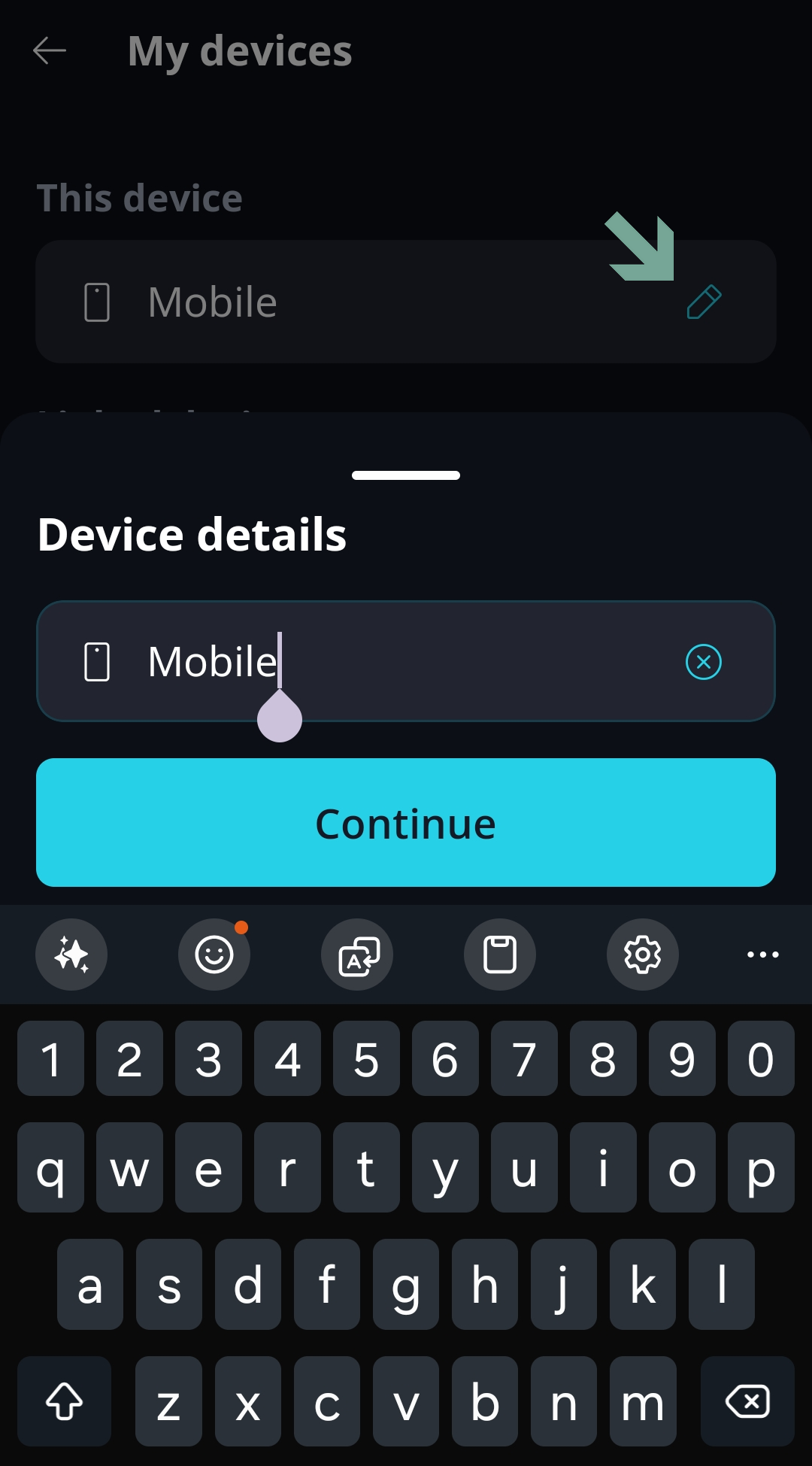
To rename your current device, go to 'Profile' / 'Settings' / 'My devices'. Click [...] / 'Rename Device' and enter a new name.
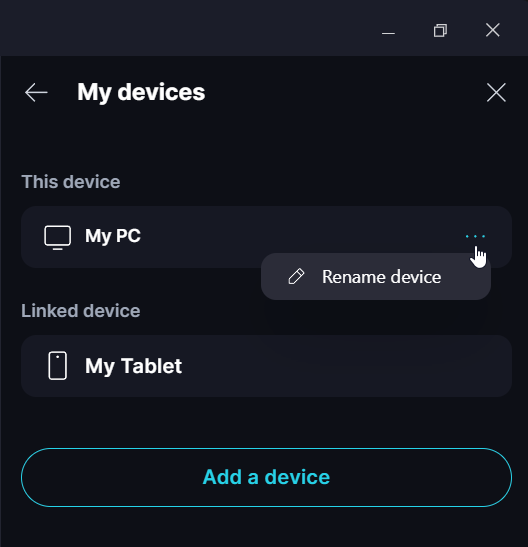
To rename other devices, repeat this process from their own 'My devices' menu.
Remove linked device
You can unlink the device on which you no longer use Keet by removing it from the Device list.
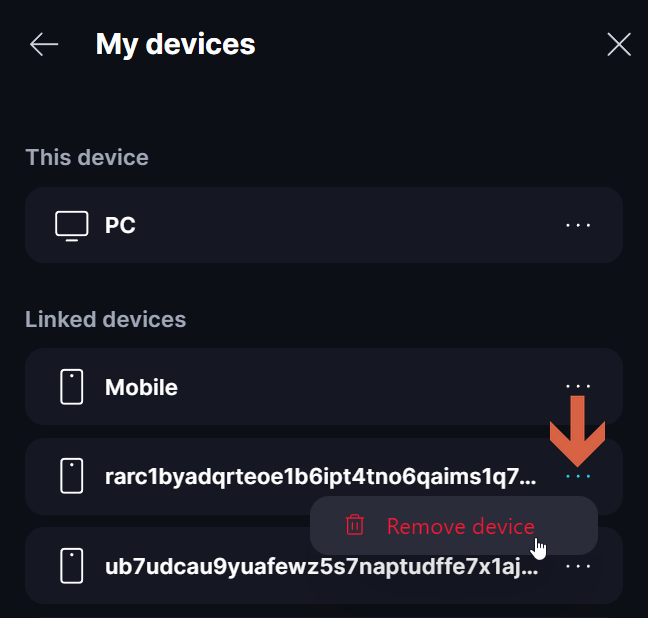
Go to 'Profile' / 'Settings' / 'My devices'. Look for the linked device you want to delete, click [...] / 'Remove device' and confirm removal:
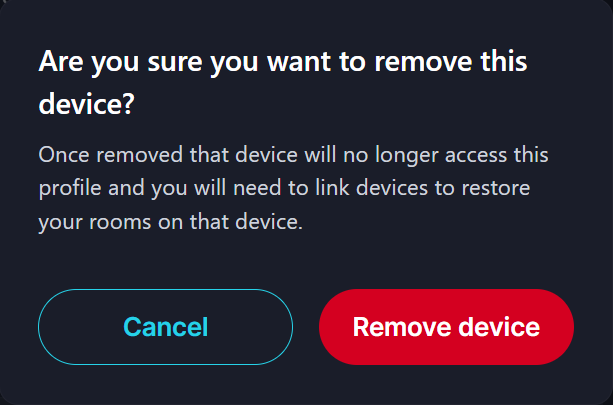
When you remove a linked device, you’ll no longer be able to access your profile, shared media, or rooms from it. You can create a new profile on that device or link it again as described in this article.