 Keet Support
Messaging on Keet ✉️
In Keet, all communication happens in groups, and there are three types:
How can I send a message to a user?
- regular groups - for group chats and collaboration
- broadcast feeds - for one-way announcements, updates or channel-like activities
- direct messages - for private, one-to-one conversations
To start messaging, you need to join an existing group, create one or initiate a DM with another peer.
Contacting a peer
Here are the ways you can start a DM:
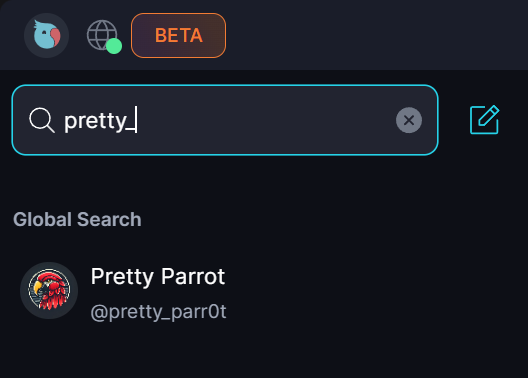
- Find by username
Start typing a member’s username in the search box to open their profile and click 'DM Request':
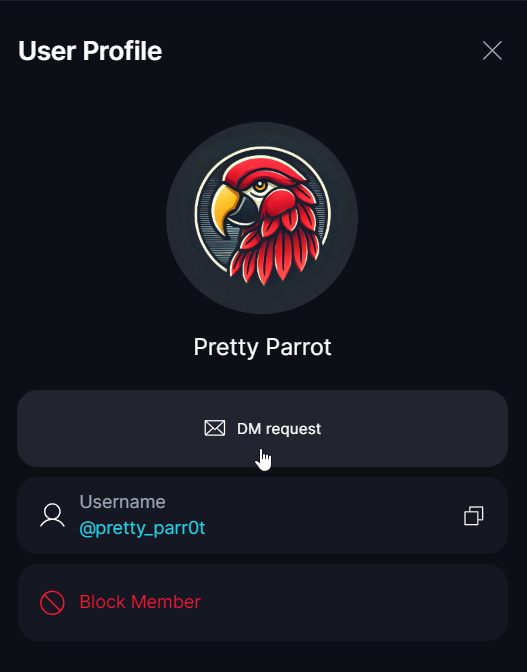
- From a user profile
Send a DM request directly from the profile panel of any member you find in a public group:
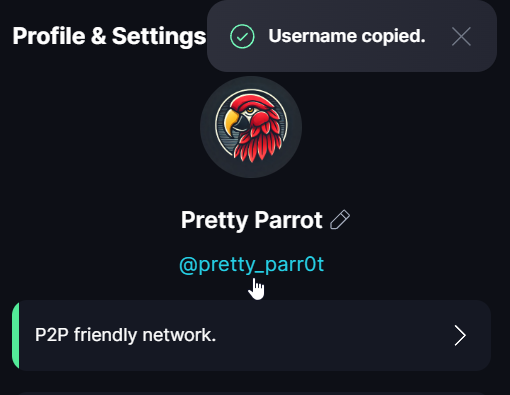
- Share your @username
Copy and send your username to someone.
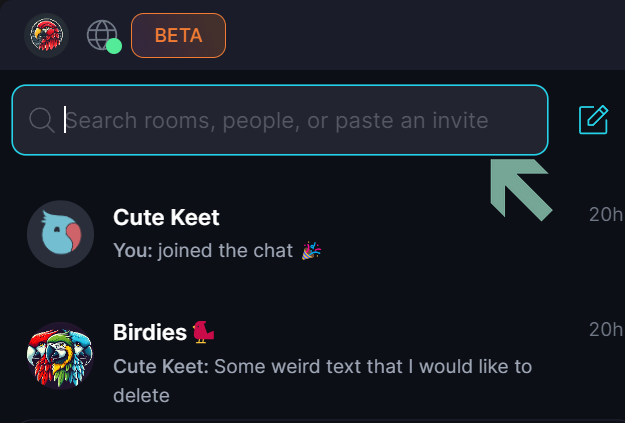
Ask your contact to insert the link into the search box in their Keet app:
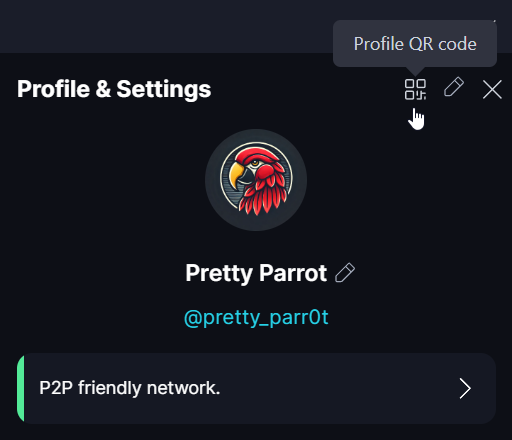
- Share your profile with a QR code
Generate your QR code in 'Profile' / 'Profile QR Code' [🏁]:
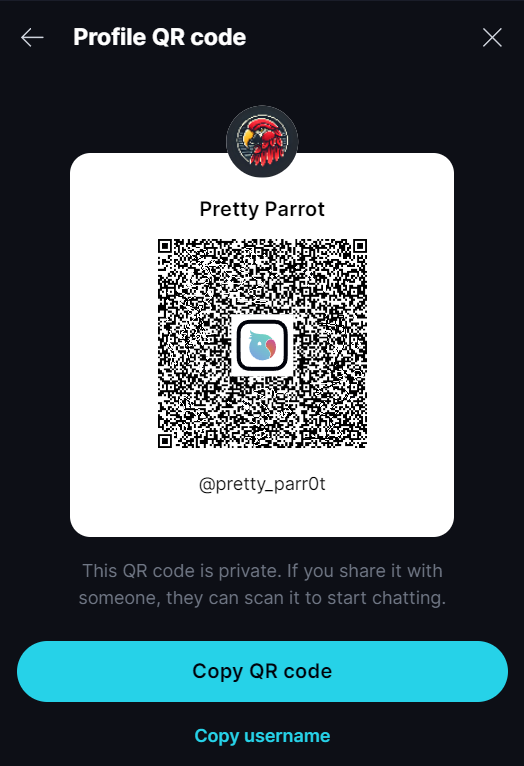
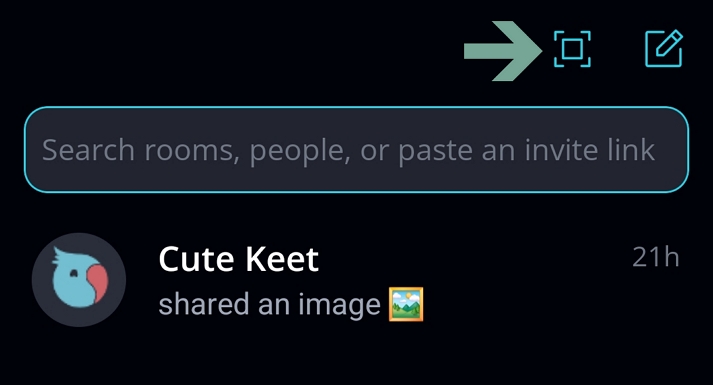
Ask your contact to scan this QR code in their Keet app by clicking 'Scan QR code' [🏁] on a mobile device (or upload the QR image):
DM request
Write an invite message to share more information about yourself with the person you’re contacting.
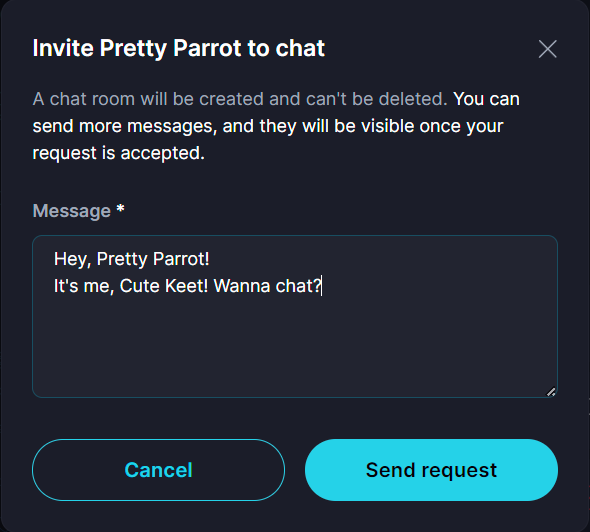
The person will only see your initial invite message. 1️⃣
You can write more messages after the DM request is sent, but the user can only see them after they accept the DM.
Managing DM requests
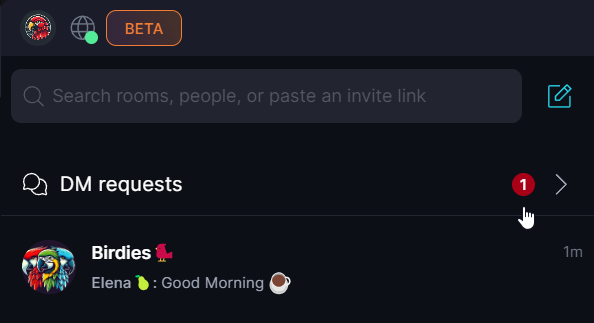
Depending on the option you choose, you or your contact will receive a DM request. These always appear at the top of your groups list:
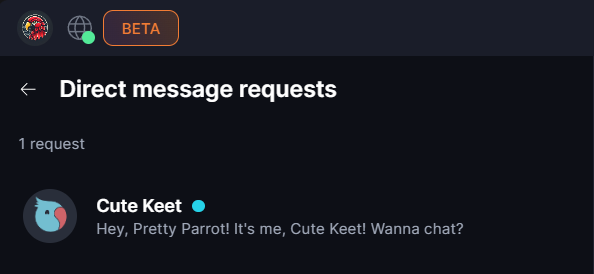
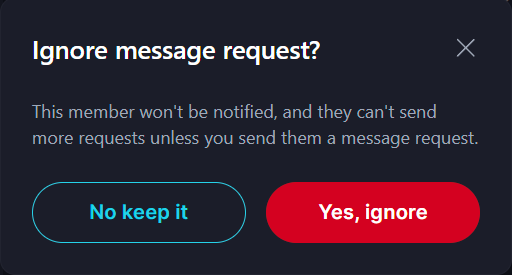
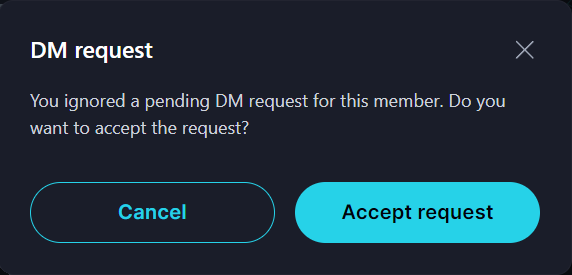
You can review each DM request and choose to 'Accept' or 'Ignore':
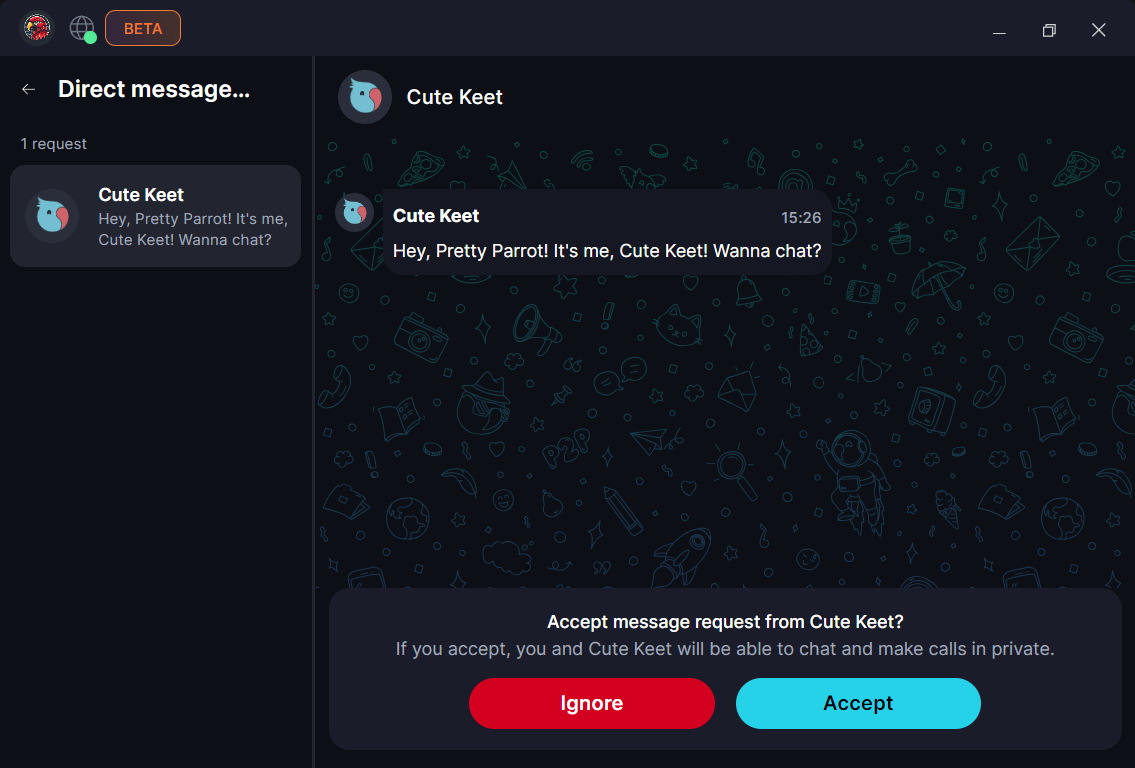
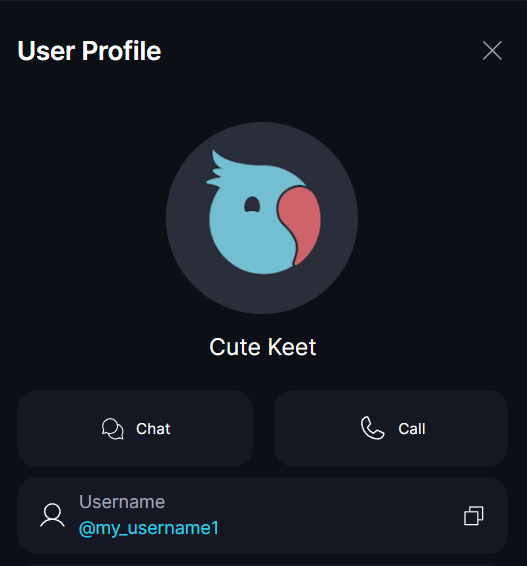
- Once you accept ✅ the request, the conversation will appear in your chat list. You can now chat privately and place voice/video calls:
- If you ignore ❌, all future messages from that user are going to be blocked.
- If you change your mind later, you can still send a request to them to start chatting.
Leaving DM conversations
You can leave a chat with a peer at any time and create a new one later. To leave, open the 'Group options' and select ‘Leave DM’ at the bottom.
Before leaving, you’ll be asked to confirm that all media files and chat history will be deleted from your device. After leaving, you won’t be able to reopen this chat.
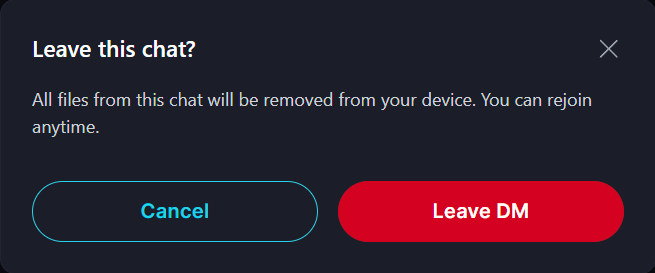
This action is permanent - once you press ‘Leave Group’, the chat will disappear from your chat list and cannot be restored. ⛔
Your peer will still have read-only access to the existing messages, but won’t be able to send new ones.
Please note that you cannot send another DM invite to the same peer until you’ve left the current DM chat.
To start a new DM, both participants need to leave the old chat first, then send an invite or scan a QR code to reconnect.
1-to-1 group
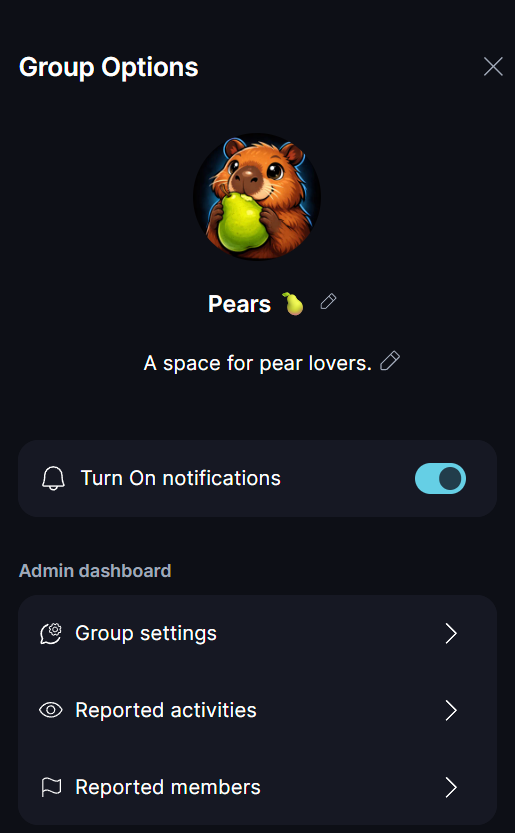
Regular groups are highly customizable — unlike DMs, you can choose to enable or disable calls, messaging, or user activity notifications. While direct messages support the call-to-ring feature, 1-to-1 groups currently don’t.
You can also assign member roles and moderate regular groups as your network grows.
Can I reply to a particular message on Keet?
Yes, to reply to a specific message in Keet:
- On Desktop, click the three dots '[...]' on the right top of the message / select 'Reply'.
- On Mobile, long-tap the message / tap 'Reply' or swipe the message to the left.
Why does a message appear later but have an earlier timestamp?
In Keet, if a message is sent while a peer is offline or experiencing connection issues, it may not reach the other party immediately.
Once the peer is back online, the message will appear in the chat with its original send time, not the time it was delivered.
This keeps the conversation timeline accurate, even if delivery was delayed. ⌚